Using 2FA Email templates
You can use our two-factor authentication (2FA) API with Email to give users another option to suit their preferences or availability for authentication. The 2FA API generates a PIN, sends it to the requested recipient email, and allows you to verify it.
Using Email as an authentication channel provides the following benefits:
- Users can quickly receive authentication codes without access to a mobile device
- It can be a part of a multi-factor authentication system, verifying your users' phone number and email address
- Verifying email addresses in your user journey provides better quality of your email database, allowing you to reach out to your users over a verified channel
The process for setting up email-based 2FA includes:
- Set up a Broadcast template and Content Email template in the web interface.
- Set up a 2FA application.
- Set up a 2FA email message template over the API.
- Send the PIN via email and verify.
Before you start, make sure that you have the following:
To learn more about the 2FA API setup, see General 2FA (OTP) setup.
Set up Broadcast template
To enable the 2FA Service for Email, you first need to create a Broadcast template:
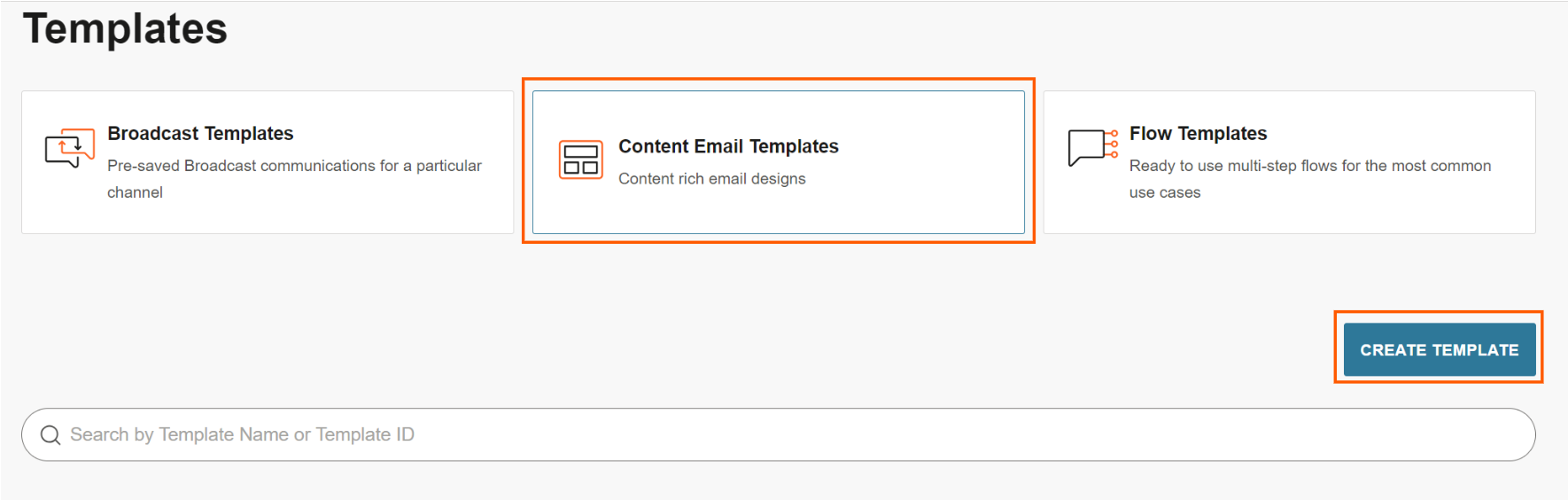
- Log in to the web interface and go to Moments → Templates.
- Click Content Email Templates, and then click Create Template.
- In the template, include a "pin" placeholder
{$pin}which is where the PIN is displayed. - Alternatively, create a custom attribute called "pin" in People → Configuration → Person Custom Attributes.
- When creating the content, create the PIN placeholder from the Placeholder Menu by typing in the PIN and using autocomplete.
- In the template, include a "pin" placeholder
- Click Save Content Template.
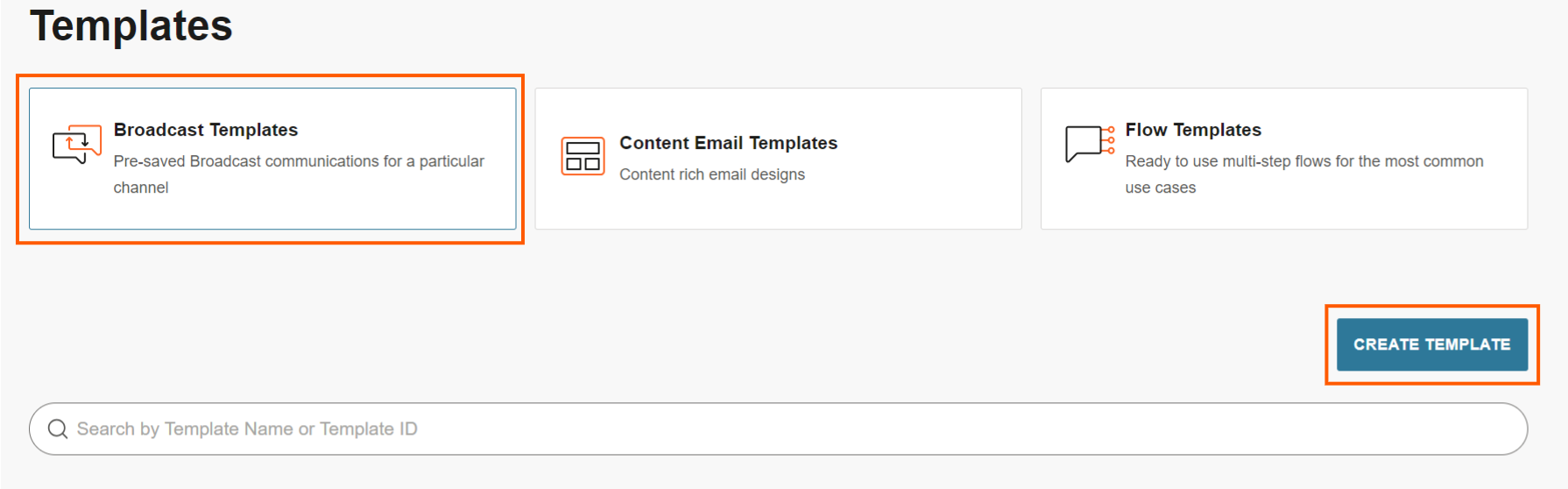
- Go back to Moments → Templates and click Broadcast Templates.
- In the top-right corner, change the channel to Email.
- In the Content section, select Choose a Template.
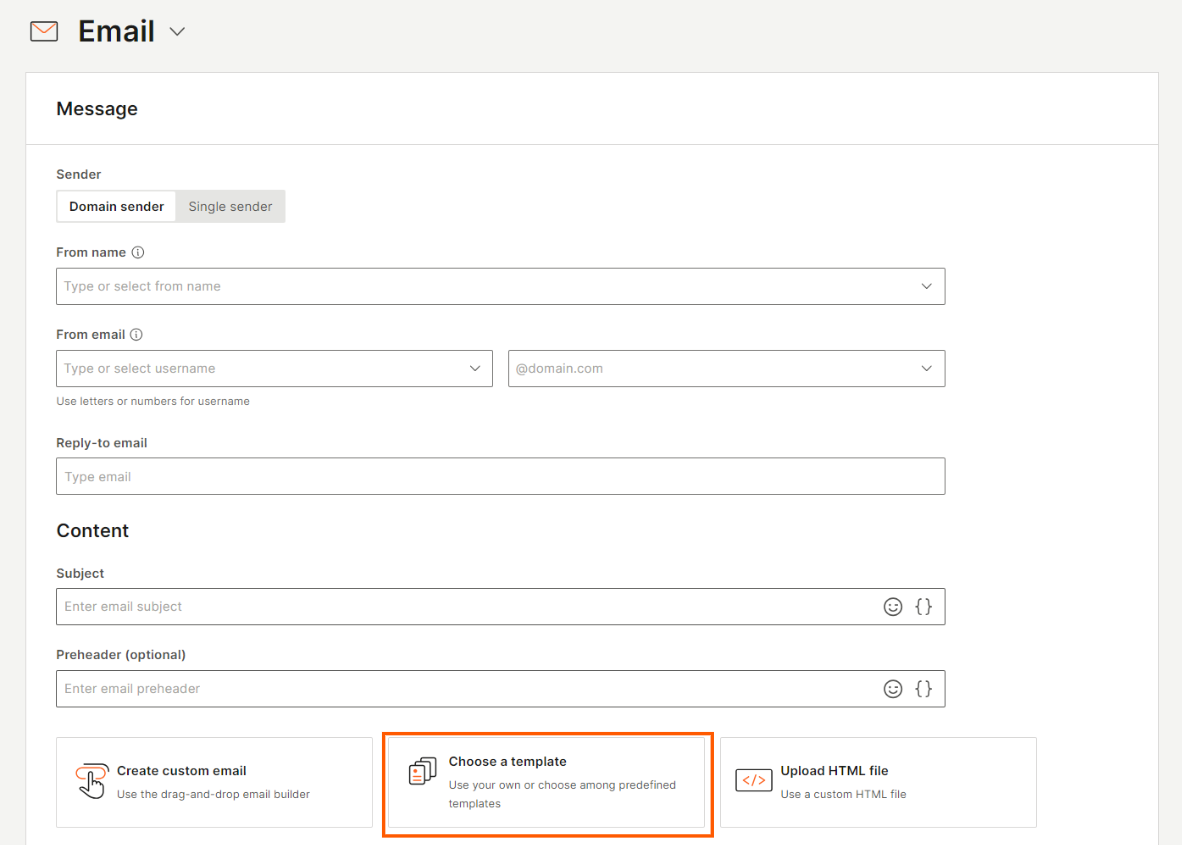
- Add the Content Email Template you created.
- Click Save Broadcast Template.
Make a note of the Broadcast template number. For example, #350140.
Set up 2FA Email message template - API
For this service, there are two endpoints to enable 2FA PIN codes to be sent via email:
-
Create a 2FA application:
POST /2fa/2/applications -
Create a 2FA Email message template. Note that
emailTemplateIdis the Broadcast template number (for example,#350140).json12 POST /2fa/2/applications/{appId}/email/messages3 {4 "pinType": "NUMERIC",5 "pinLength": 4,6 "emailTemplateId": 3501407 } -
Send a 2FA PIN code over Email with
POST /2fa/2/pin/email(see Send 2FA PIN code over email). -
Verify the 2FA PIN with
POST /2fa/2/pin/\{pinId\}/verify(see Verify request).