Inbox analytics
Inbox analytics provides comprehensive performance insights for your contact center operations. Monitor agent activity, track conversation metrics, analyze channel performance, and measure customer satisfaction across all communication channels.
Inbox analytics consists of three main categories:
- Live analytics - Monitor real-time conversation activity, agent status, queue metrics, and active calls. View live updates every 15 seconds to track current performance and make immediate adjustments.
- Predefined dashboards - Access industry-standard KPIs and performance metrics across five key areas: Overview, Channels, Agents, Conversations, and Voice of the customer. Filter data by date range, channel, queue, tags, and forms to analyze historical performance and identify trends.
- Custom dashboards - Create personalized analytics views tailored to your specific business needs. Build custom visualizations, select relevant metrics, and design dashboards that focus on the KPIs that matter most to your organization.
Live analytics
Live analytics contains two tabs:
- Live analytics - Monitor live conversation activity, including real-time metrics related to contact center operations.
- Right now - View a consolidated dashboard of the current state of your contact center, including key indicators, queue performance, and agent status.
Live analytics [#live-analytics-tab]
Use the Live analytics tab to monitor live conversation activity in your contact center. The dashboard shows real-time metrics related to contact center operations.
- Data marked with a clock icon covers the period from 12:00 AM to 11:59 PM. This includes Closed conversations in the Conversation widget and in Queues, as well as Calls in total, Containment rate, and Avg handle time in the Voice AI agents table.
- All other data refreshes every 15 seconds.
To see the analytics:
- Log in to your Infobip account.
- Go to Insights and Analytics → Analytics → Inbox → Live analytics.
- Use the following filters to refine the metrics:
- Agents
- Queues
- Channels
- Direction
Filtering by Channels may show or hide certain elements in the dashboard. For example, if you select Channel = SMS, call-related metrics are hidden because they do not apply to the SMS channel.
- In each section, select the Arrange columns on the right to open the column settings. From there, you can reorder columns or use the checkboxes to control column visibility. You can cancel your changes, reset the columns to their default settings, or apply the new configuration at any time by selecting the corresponding option.
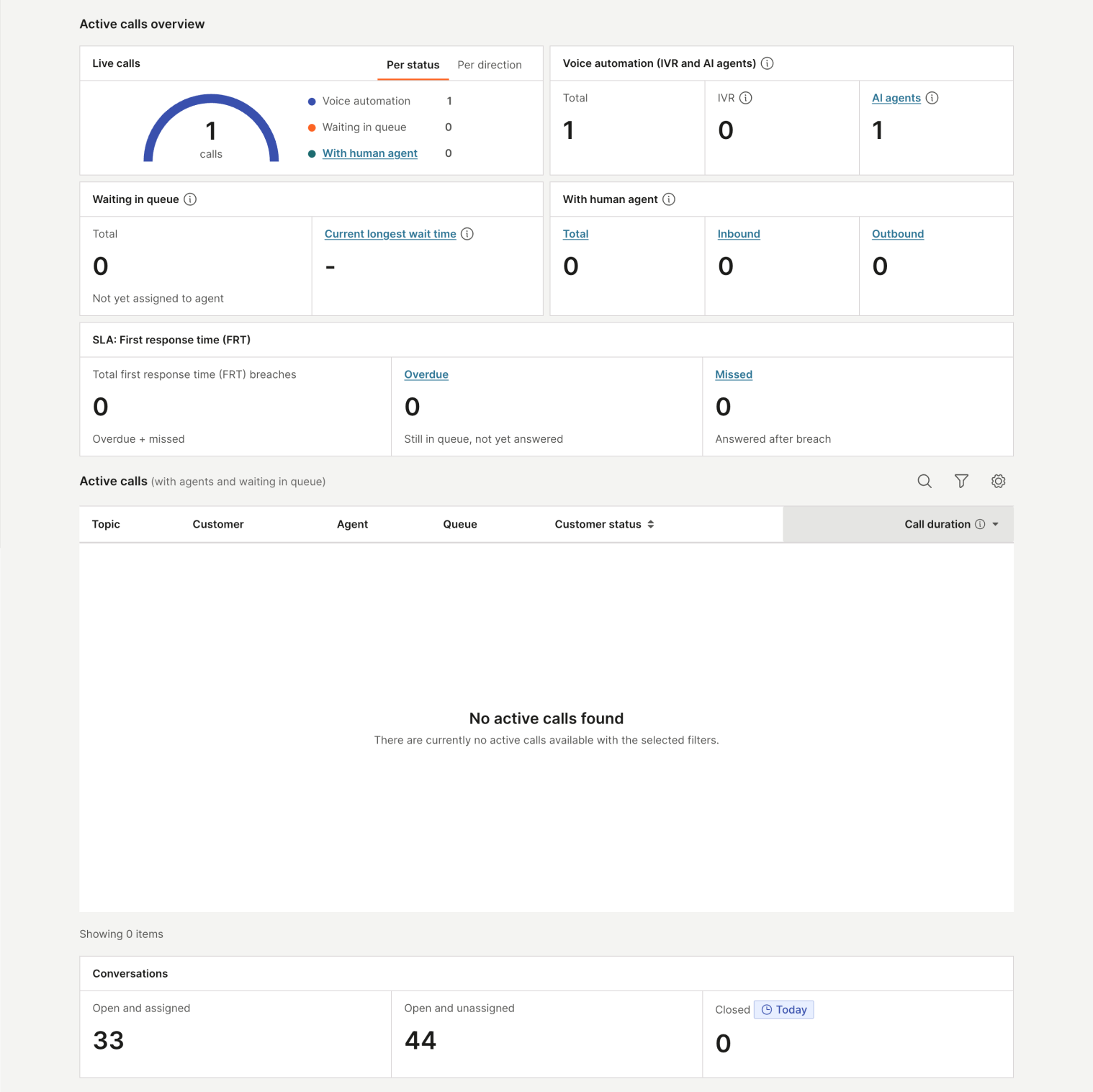
Active calls overview
The Active calls overview includes the following sections:
- Live calls: Displays the total number of active calls along with a breakdown of their distribution by status across two tabs:
- Per status: Voice automation, Waiting in queue, With human agent
- Per direction: Inbound, Outbound
- Voice automation (IVR and AI agents): Calls currently managed by automated systems, including IVR and AI agents, with some cases escalated to a human agent when needed. Metrics include:
- Total: IVR + AI agents.
- IVR: Interactive voice response system. Handles both inbound and outbound calls.
- AI agents: Voice AI agents that handle inbound and outbound calls autonomously. Some calls may be escalated to a human agent. Select the AI agents value to go to the Voice AI agents table.
- Waiting in queue: Inbound calls currently waiting to be connected to an available human agent. Also includes outbound calls waiting after being transferred, as well as outbound calls initiated by IVR that are later transferred to a human agent. Metrics include:
- Total
- Current longest wait time: The longest time a user has been waiting for a human agent, measured from when the call starts until it is accepted
- With human agent: Calls currently being handled by a human agent when needed. Metrics include:
- Total
- Inbound
- Outbound
SLA: First response time (FRT)
The SLA: First response time (FRT) widget displays real-time metrics for first response time breaches for calls. The widget shows:
- Total first response time (FRT) breaches: The combined count of overdue and missed calls.
- Overdue: Calls still in the queue where the time limit has been exceeded. Select this value to filter the Active calls table by overdue calls.
- Missed: Calls that were answered after the FRT threshold was breached. Select this value to filter the Active calls table by missed calls.
Metric values display in red when greater than 0.
Active calls
The Active calls metrics section provides real-time data about agents and all customers waiting in queues for an available agent to answer their call.
The metrics table displays the following details:
- Topic
- Customer
- Company
- Agent
- Queue
- Customer status
- Call count: Number of repeated calls made by the customer in the last 24 hours.
- Call duration (including wait time, talk time, and hold time)
- Wait time
- SLA: FRT: Displays the first response time SLA status for each call as one of the following:
- Remaining: The timer is actively counting and the SLA has not yet been breached.
- Overdue: The timer is actively counting, but the time limit has been exceeded.
- Not breached: The call was answered within the FRT threshold.
- Missed: The call was answered, but after the FRT threshold was exceeded.
- No SLA (-): No SLA is configured for this call.
- Action: Action buttons appear only for users with the Supervisor for Inbox role. Other roles, including the Analytics role, see the calls without any action buttons. For a call in progress, select Listen to silently monitor the call; monitoring ends when the call ends.
You can further refine the displayed data using filters for:
- Customer
- Company
- Agents
- Queues
- Customer status (talking, on hold, waiting for an agent)
- Direction (inbound, outbound)
- SLA: FRT (Remaining, Overdue, Not breached, Missed, No SLA)
- Interaction type
- Additional participant
Conversations
The Conversations metrics section includes:
- Open and assigned: All open conversations with assigned agents.
- Open and unassigned: All open conversations without assigned agents.
- Closed: All closed conversations. This is measured from 12 AM to 11:59 PM.
Queues
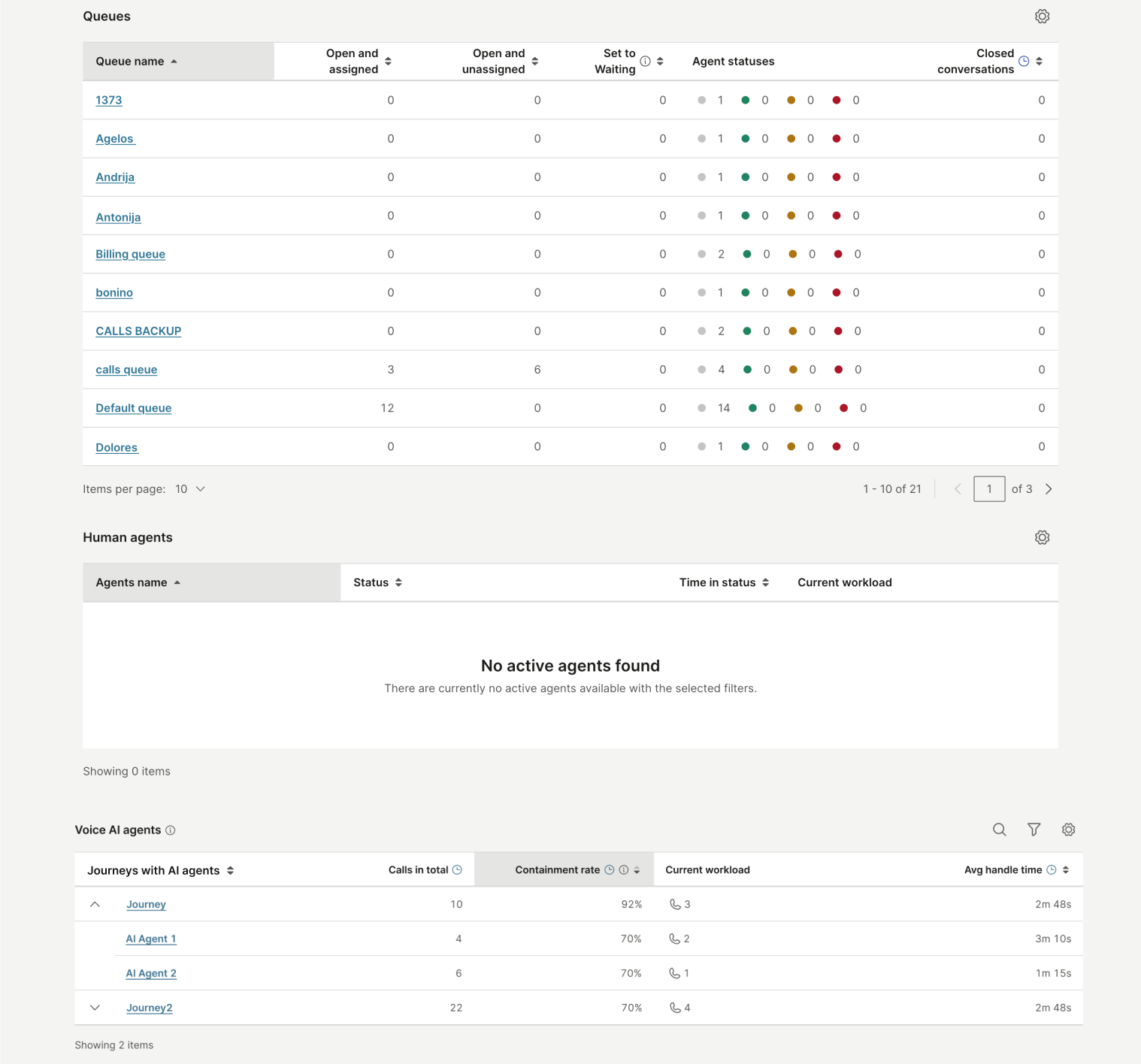
The Queue metrics section includes:
- Queue name: Name of the queue.
- Open and assigned: Number of open conversations with assigned agents.
- Open and unassigned: Number of open conversations without assigned agents.
- Set to waiting: Conversations waiting for an agent's response.
- Agent statuses: Distribution of agents in the Available, Busy, and Away status groups.
- Closed conversations: Total number of closed conversations in the queue.
You can customize the column layout by selecting Arrange columns. Drag and drop items to reorder, include, or exclude columns as needed.
Human agents
The Human agents metrics section includes:
- Agent name: Name of the agent.
- Status: Current availability status of the agent.
- Time in status: Duration the agent has been in the current status.
- Current workload: Number of active conversations the agent is handling compared to their maximum workload limit.
- Action: Select Listen to silently monitor an agent's current call. This option is only available while the agent is on a call, and monitoring ends when that call ends. The Listen button appears only for users with the Supervisor for Inbox role and only when calls are enabled for your account.
You can customize the column layout by selecting Arrange columns. Drag and drop items to reorder, include, or exclude columns as needed.
Voice AI agents
The Voice AI agents table displays real-time performance metrics for Voice AI agents organized by journey. Each journey row is expandable to show the individual AI agents within that journey.
The table displays the following details:
- Journeys with AI agents: Displays the journey name, which can be expanded to show the AI voice agents within that journey. Both the journey and each agent name are shown as links to their respective settings pages.
- Calls in total: Total number of calls handled today. Measured from 12:00 AM to 11:59 PM. In a journey, only AI agent resolutions count.
- Containment rate: Percentage of conversations fully resolved by the AI today. A sudden drop may indicate a gap in the AI flow. Measured from 12:00 AM to 11:59 PM. In a journey, only AI agent resolutions count.
- Current workload: Number of calls currently being handled by the AI agent.
- Avg handle time: Average time the AI takes to resolve a conversation today. Measured from 12:00 AM to 11:59 PM. In a journey, only AI agent handle time counts toward this metric.
Use the search icon to search by journey or AI agent name, or use the filter to narrow results by AI agent.
You can customize the column layout by selecting the gear icon. From there, you can show, hide, or reorder columns.
Right now [#right-now-live-analytics]
The Right now dashboard displays the current state of your contact center. All key indicators are consolidated to give you a clear view of ongoing events. You can filter data by channels and queues using the options on the far right.
Data updates each time you refresh the page to show the most up-to-date analytics.
Highlights
View the current distribution of active conversation statuses and the performance of all queues. This section also shows the number of active conversations with a service-level agreement (SLA) breach.
Breakdown by conversations
See how many active conversations are in each status (Total, Open, Waiting, Solved). You can filter by origin:
- All
- Inbound
- Outbound
Waiting time
Understand how long customers are waiting for your services. Filter results by selecting a specific channel from the channels list in the upper right corner.
Metrics available:
- First response time: Time taken by an agent to respond to a conversation, measured from creation until the agent's first message.
- All response time: Median time taken by an agent to respond to all messages (excluding the first message).
Both metrics display minimum, maximum, and median values.
Agent status
Shows the number of currently logged-in agents compared to all agents. View agents by status (Active, Busy, Away, Offline). Select Show details to view all agents. You can export the full list by selecting Export and choosing the .csv option.
Assigned conversations
Displays all currently active conversations, including counts for unassigned and assigned conversations.
Conversations per queue
Shows the total number of conversations by status for each queue. Select Show details for more information.
Top most used tags
Displays the most used tags in active conversations, ranked by usage. Select Show details to see tag performance. You can export this list as a .csv file.
Performance per channel
Shows how active conversations are distributed by status for each channel.
Predefined dashboards
Predefined analytics dashboards display common metrics that follow industry standards. These analytics help admins and users with the make data-driven decisions in the contact center.
To access predefined dashboards:
- Log in to your Infobip account.
- Go to Insights and Analytics → Analytics → Inbox → Predefined dashboards.
At the top of the page, you can switch between the following tabs:
- Overview
- Channels
- Agents
- Conversations
- Voice of the customer
You can also create custom dashboards.
The filtering options always stay visible as you scroll down or up any of the analytics tabs. Make sure to glance at them to confirm that you have selected the desired options.
Overview [#overview-predefined-dashboards]
View key KPIs and performance metrics for your helpdesk. Admins and users with the Analytics role can quickly see the status of their contact center for the selected period.
You can filter the overview by several parameters:
- Date range: Filter by daily (minimum 7 days), monthly, quarterly, yearly, or all-time analytics.
- Channel name: View all channels or select specific ones.
- Conversation queue: View analytics for a specific queue or all queues.
- Conversation tag: Filter by specific conversation tags.
- Conversation form: Analyze performance by the forms agents use.
Use this section to review each insight or navigate to other dashboards to identify and address issues in your contact center.
Contact center overview
The Contact center overview displays a high-level summary of key indicators for your contact center, including the Customer Satisfaction Score (CSAT) and work distribution by channel category (number of conversations created per category).
| Metric | Description |
|---|---|
| Created conversations | Number of conversations created. |
| Closed conversations | Number of conversations closed. |
| CSAT | Customer satisfaction score. |
Below this, you can see a metric graph of the following:
| Metric | Description |
|---|---|
| Created & closed conversations | Graph showing created and closed conversations. |
| Created & closed conversations by channel | Graph showing created and closed conversations by channel. |
Additionally, you can see the number of the following created conversations:
| Metric | Description |
|---|---|
| Live messaging conversations created | Number of live messaging conversations created. |
| Live Chat conversations created | Number of Live Chat conversations created. |
| Social media conversations created | Number of social media conversations created. |
| Email conversations created | Number of email conversations created. |
| Calls conversations created | Number of calls conversations created. |
| Internal conversations created | Number of internal conversations created. |
Agent utilization
Track how much time agents spend in the system and their activities. This section shows agent productivity by comparing time spent in each status with engagement levels.
| Metric | Description |
|---|---|
| Agent's utilization | Overview of how much time agents spend in the system and their activities. |
| Daily agent's utilization | Daily breakdown of agent utilization. |
| Percentage of time in Available or Busy | Percentage of time agents spend as Available or Busy out of total logged-in time. |
| Ratio of productive time vs Away status | Ratio of productive time (Available and Busy) versus time spent in an Away status. |
CSAT and SLA
Customer satisfaction score (CSAT) is a key indicator of helpdesk success. Combined with Service-Level Agreement (SLA) metrics, this section provides valuable insights.
- The first metric shows the number of SLA breaches compared to the previous period.
- The middle metric displays the median sentiment score of all conversations. Sentiment analysis uses machine learning to interpret customer and agent interactions.
- The right metric shows the percentage of positive survey responses for customer satisfaction.
Most popular tags
Conversation tags are added automatically or manually by agents. Tags indicate why a conversation was created or why the customer contacted you. Tag frequency provides insight into products or services and can help you identify areas for improvement.
| Metric | Description |
|---|---|
| Conversations by tags | Number of conversations grouped by tag. |
Additionall, you can review the following tag details:
- Conversation tag
- Conversations
- Avg. 1st response time
- Agent first response time
- Median conversation resolution time
Channels [#channels-predefined-dashboards]
The Channels analytics tab provides detailed insights into call center metrics for each channel in use. Admins can review agent efficiency and channel performance.
With Channels analytics, you can:
- View operational performance for queues, agents, and channels
- Access reports for every conversation
- Evaluate and improve the overall customer experience
- Track progress toward operational and strategic goals
- Identify issues in operational processes and flows
The Channels tab includes the following options:
- Live messaging
- Live Chat
- Inbound calls
- Outbound calls
- Transfers and collaborative calls
- Callback calls
Live messaging
The Live messaging report provides insights into user engagement, interactions, and activity across messaging platforms, including:
- Live messaging applications
- Live Chat
Each category features consistent metrics, widgets, and visualizations tailored to the selected channel.
Explore the sections below for more details.
Overview
The overview section displays key conversation metrics for the selected time range.
| Metric | Description |
|---|---|
| Created conversations | Total number of conversations created. |
| Solved conversations | Total number of conversations marked as solved or closed. |
| SLA achievement rate | Percentage of conversations that met the service-level agreement. |
| CSAT | Percentage of positive customer survey responses. |
| Created and solved conversations graph | Visualizes the daily ratio between created and solved conversations. |
Responsiveness
Responsiveness metrics help evaluate communication efficiency and customer service quality within a channel.
| Metric | Description |
|---|---|
| Average first response time | Average time from conversation creation to the first outbound message. |
| Average first response time vs. CSAT graph | Compares average first response time to CSAT scores. |
| Average first response time vs. sentiment graph | Compares average first response time to sentiment scores. |
| Sentiment | Median sentiment score for conversations. |
Performance
Performance metrics provide insights into channel efficiency.
| Metric | Description |
|---|---|
| Average resolution time | Average time from conversation start to status update as Solved or Closed. |
| Average customer's messages | Average number of customer messages per conversation. |
| Average agent's messages | Average number of agent messages per conversation. |
| Customer's messages by conversations – total vs. average graph | Visualizes total and average customer messages per conversation. |
| Agent's messages by conversations – total vs. average graph | Visualizes total and average agent messages per conversation. |
Conversations details
The Conversations details part is a compilation of filtered conversations containing crucial details, essentially presenting a list of conversations that align with your search parameters.
By selecting any of the Conversation IDs, you can navigate directly to the corresponding conversation within the All Work panel.
The Calls channel has proven to be the most effective way to convey complex topics, and it remains the preferred mode of interaction for a majority of our customers. This emphasizes the importance of acquiring full insights into their experiences. To facilitate this, we provide a dashboard equipped with a range of metrics.
This dashboard encompasses a collection of essential indicators that enable us to not only evaluate customer satisfaction but also enhance operational efficiency within our call center.
Inbound calls
Calls are a synchronous and direct channel characterized by minimal wait times and a smooth process. They also demand precise measurements for each step.
There are two major viewpoints on calls:
- Customer's call: From the customer's perspective, the call begins when they dial the number and ends when they hang up, ideally after successfully resolving their issue.
- Agent's call: From the agent's perspective, the call starts when they receive the ringing pop-up on their screen. Agents are busy, and the goal is to track their time precisely, linking their performance to their actions alone.
Everything between the customer dialing your number and the agent resolving the customer's problem is considered part of the call center's performance.
By combining these elements, the time customers spend in the Interactive voice response (IVR) system or queue has been excluded from the agent's performance metrics. These parts of the process are tied to call center-related metrics, while the agent's actions are linked to the agent's performance.
Inbound calls are crucial in boosting customer satisfaction and building lasting relationships, whether through handling inquiries, processing orders, resolving complaints, or providing support.
The Inbound calls dashboard includes the following filters:
- Date range: Select the time period for which you want to view inbound call data.
- Agent info: Filter metrics based on specific agent details, such as name or ID.
- Conversation queue: Choose the queue to view metrics related to specific conversation queues.
- Conversation tag: Filter metrics by tags related to specific conversations.
- Call type: Select the type of call, such as PSTN or WEBRTC, to refine the data.
- Call direction: This filter is locked to inbound calls, showing only incoming call data.
- Call part type: This filter is locked to initial, displaying only the first part of the call. See Call parts for the full list of call part types and outcomes.
Customer's calls
The Customer's calls metric provides insights into key call metrics, helping you monitor call center performance, make data-driven decisions, and improve customer service. The report includes various metrics related to specific call activities.
| Metric | Description |
|---|---|
| Total inbound calls | Number of calls that reached the platform. |
| Answered calls | Number of calls picked up (answered) by an agent. |
| Total answered customer calls | Number of initial customer calls that were successfully established. |
| Missed calls | Number of calls not answered, including scenarios such as reaching the waiting strategy time limit, no agent response, callback requests, calls outside working hours, and when auto-assignment is disabled. |
| Average wait time | Average time between when a call is offered and when it is answered. |
| Queue abandon rate | Percentage of calls abandoned in the queue, excluding calls from queue short abandon. |
| Service level | Percentage of calls resolved under service-level agreement. |
| Total inbound calls vs. answered calls | Comparison of inbound calls that reached the platform versus those picked up by an agent over a selected date range. |
| Conversations SLA | Number of calls that met versus breached the service-level agreement within the selected date range. |
| Calls created distribution | Number of inbound calls received within a specific time period, visualized by day and hour. |
Agent's calls
The Agent's calls metric provides a detailed analysis of individual agent performance, tracking key metrics related to the calls they handle.
| Metric | Description |
|---|---|
| Calls rang to agent | Number of calls that reached the agent, measured when the call rings on the agent's side. |
| Answered calls | Number of inbound calls picked up by an agent. |
| Ignored calls | Number of calls where an agent declined the call or did not answer within the ring time period. The call is forwarded to the next available agent. |
| Cancelled by customer | Number of calls that began ringing on the agent’s end but were either canceled by the customer or failed due to a technical issue before being answered. |
| Ignored calls breakdown | Comparison between the number of calls actively rejected by agents using the Reject button and those missed due to agents not answering before the ring time expired. |
Performance
The Performance metric provides detailed insights into the call center’s operations, agent performance, and overall call quality.
| Metric | Description |
|---|---|
| Average handle time | Average time an agent spends handling calls, including talk time, hold time, and wrap-up time. |
| Total handle time | Total time an agent spends handling calls, including talk time, hold time, and wrap-up time. |
| Average talk time | Average duration from when a call connects to an agent until it is disconnected, excluding hold time. |
| Total talk time | Total time a call remains connected to an agent until it is disconnected, excluding hold time. |
| Average wrap up time | Average time an agent spends in the wrap-up state after a call ends. |
| Total wrap up time | Total time an agent spends in the wrap-up state after handling calls. |
Holds
The Holds metric provides insights into the time callers spend on hold before being connected to a call center agent or during conversations.
| Metric | Description |
|---|---|
| Average hold time | Average time calls were placed on hold by agents. |
| Total hold time | Total time calls were placed on hold by agents. |
| Average hold per call | Average number of hold actions used per answered call. |
| Hold rate | Percentage of answered calls placed on hold at least once. |
Call center - Health check
Abandons
The Abandons metric offers insights and data on abandoned calls, which occur when callers disconnect or hang up before speaking with an agent.
| Metric | Description |
|---|---|
| Abandoned calls | Number of calls disconnected at any point before being connected to an agent (including short abandon and regular abandons). |
| Abandoned calls (excl. short) | Number of calls disconnected at any point before being connected to an agent (excluding short abandoned calls). |
| Short abandoned calls | Number of calls disconnected in less than 7 seconds. |
| Abandon rate | Percentage of inbound calls that disconnect before being connected to an agent, calculated as the number of abandoned calls divided by the total number of offered calls. |
| Average abandon time | Average time from when a call is offered to when it is abandoned by the customer. |
| Total abandon time | Total time spent waiting for calls that were abandoned at any point before being connected to an agent. |
| Total failover | The total number of inbound calls that were automatically rerouted from their original queue due to configured failover conditions, equal to the sum of failovers to an external number and failovers to another queue. |
| Failover to external number | The number of inbound calls that were rerouted from a queue to an external phone number as part of configured failover strategy. |
| Failover to queue | The number of inbound calls that were rerouted from their original queue to another internal queue as part of configured failover strategy. |
Performance
The Performance metric provides an overview of your call center's operational health by analyzing key performance indicators.
| Metric | Description |
|---|---|
| Average wait time | Average time from when a call is offered to when it is answered by an agent. |
| Total wait time | Total time from when a call is offered to when it is answered by an agent. |
| Average call center resolution time | Average time from when a conversation is opened to when it is marked as solved. |
| Total call center resolution time | Total time from when a conversation is opened to when it is marked as solved. |
Failed inbound calls
The Failed inbound calls metric provides insights into calls that could not be successfully connected to an agent.
| Metric | Description |
|---|---|
| Dropped calls (before answer) | Number of calls disconnected due to abnormal issues such as operator error, application error, or insufficient funds before the agent answers, resulting in call termination. |
| Dropped calls (after answer) | Number of calls with an abnormal disconnect due to operator error, application error, or insufficient funds after an agent answers. |
| Calls expired | Number of calls disconnected because of a timeout, when the maximum wait time has passed and the call is terminated. |
Call type
The Call type metric categorizes and analyzes the different types of calls handled by your call center.
| Metric | Description |
|---|---|
| Calls distribution per call type | Pie chart showing the distribution of PSTN versus WebRTC call types, based on the Call Type attribute values: PSTN and WEBRTC. |
| WebRTC audio vs video | Pie chart showing the ratio of audio to video calls based on the Media Type attribute, including AUDIO, VIDEO, and calls with an empty value assigned to one of the categories based on specific logic. |
| Trend of different call types | Column chart showing the number of calls, or created calls, based on call type over the selected time period. |
Outbound calls
Outbound calls play a crucial role in addressing customer inquiries, processing orders, resolving complaints, and providing support. Agents proactively reach out to customers for various purposes.
The Outbound calls dashboard includes the following filters:
- Date range: Select the time period for outbound call data.
- Agent info: Filter calls by specific agent details, such as name or ID.
- Conversation queue: View metrics for specific conversation queues.
- Conversation tag: Filter metrics by tags related to specific conversations.
- Call type: Select the type of call, such as PSTN or WEBRTC.
- Call direction: This filter is locked to outbound calls, showing only outgoing call data.
- Call part type: This filter is locked to initial, displaying only the first part of the call. See Call parts for the full list of call part types and outcomes.
This dashboard includes a range of metrics, offering a comprehensive view of your call center's performance. See the sections below for more details.
Summary
The Summary metric provides a high-level overview of all outbound calls, allowing you to quickly assess the status and performance of outbound calls.
| Metric | Description |
|---|---|
| Total outbound calls | Number of calls initiated from the platform. |
| Answered calls | Number of calls picked up by the end-user. |
| Answer rate | Percentage of successfully answered calls. |
| Average calls per agent | Average number of calls made by agents who completed at least one call during the selected interval. |
| Created calls (outbound) vs answered calls by customer | Comparison of calls initiated from the platform to calls answered by the end-user, based on the selected date range. |
Call center health check
With the Call center health check metric you can monitor crucial call center metrics to optimize performance, enhance efficiency, and improve customer satisfaction.
| Metric | Description |
|---|---|
| Calls created distribution | Number of calls created in a given time period, grouped by day and hour. |
| Abandon rate | Percentage of outbound calls that disconnect before being connected to an agent, calculated as the number of abandoned calls divided by the total number of offered calls. |
Performance
The Performance metric provides comprehensive insights into call center operations, agent performance, and overall call quality.
| Metric | Description |
|---|---|
| Average dial time | Average time between call creation and call answer. |
| Total dial time | Total time between call creation and call answer. |
| Average talk time | Average time from when a call is connected to an agent until it is disconnected, excluding hold time. |
| Total talk time | Total time from when a call is connected to an agent until it is disconnected, excluding hold time. |
| Average wrap up time | Average time an agent spends in the wrap-up state after a call ends. |
| Total wrap up time | Total time an agent spends in the wrap-up state after a call ends. |
| Average handle time | Average time an agent spends handling calls, including talk time, hold time, and wrap-up time. |
| Total handle time | Total time an agent spends handling calls, including talk time, hold time, and wrap-up time. |
| Average call center resolution time | Average time from when a conversation ticket is created to when the conversation is closed. |
| Total call center resolution time | Total time from when a conversation ticket is created to when the conversation is closed. |
Holds
The Holds metric provides insights into the time agents use the on hold option, helping you evaluate hold times for efficiency and customer satisfaction.
| Metric | Description |
|---|---|
| Average hold time | Average time calls were placed on hold by agents. |
| Total hold time | Total time calls were placed on hold by agents. |
| Average hold per call | Average number of hold actions performed per answered call. |
| Hold rate | Percentage of answered calls placed on hold at least once. |
Failed outbound calls
The Failed outbound calls metric tracks instances where outbound calls could not be successfully completed.
| Metric | Description |
|---|---|
| Dropped calls (before answer) | Number of calls that ended due to abnormal disconnects, such as operator errors, application failures, or insufficient funds, before the customer had a chance to answer. |
| Dropped calls (after answer) | Number of calls that experienced an abnormal disconnect after being answered by the customer, caused by issues such as operator errors, application failures, or insufficient funds, after the customer had a chance to answer. |
Call type
The Call type metric categorizes calls based on their type, providing insights into the distribution of different call types.
| Metric | Description |
|---|---|
| Calls distribution per call type | Pie chart showing different types of calls based on the Call Type attribute values: PSTN and WEBRTC. Empty values are not accepted. |
| Trend of different call types | Pie chart showing different types of calls over a selected date range, based on the Call Type attribute values: PSTN and WEBRTC. Empty values are not accepted. |
Transfers and collaborative calls
The Transfers and collaborative calls dashboard provides an overview of calls that were transferred between agents or departments, as well as consult calls and group calls (3-way calls). It tracks the volume, rate, and outcomes, helping identify trends in call handling efficiency and areas for improvement in call routing or agent training.
The Transfers and collaborative calls dashboard includes the following filters:
- Date range: Select the time period for which you want to view data.
- Destination agent: Filter metrics based on the receiving agent.
- Destination queue: Choose the destination queue to view metrics for specific queues.
- Conversation tag: Filter metrics by tags related to specific conversations.
- Call direction: Select the direction of the call, such as inbound or outbound, to refine the data.
- Interaction type: Filter by the type of interaction, such as transfers, consult calls, or group calls.
- Call type: Choose the type of call, such as PSTN or WEBRTC, to refine the data.
Explore the sections below to discover more about the metrics included in the Transfers and collaborative calls dashboard.
Overview
Each interaction is counted exactly once, in the section that reflects its final outcome.
Counting rules:
- Blind transfer → Transferred calls
- Consult → warm transfer → Transferred calls (warm)
- Consult stays as consult → Consult calls
- Group call → agent drops and hands off → Transferred calls (group call transfer; post-transfer leg tracked here)
- Consult → customer merged in → Group calls (not counted in Consult)
| Metric | Description |
|---|---|
| Blind transfers | Cold handoff, no briefing. |
| Warm transfers | Agent briefed the receiving agent before handoff. |
| Group call transfers | Transfers from within a group call. The post-transfer leg is tracked in Transferred calls. |
| Consult calls | Agent consulted a colleague but kept ownership of the call. |
| Group calls | 3-way simultaneous call with the customer, originating agent, and a second agent. |
Transferred calls
Volume and success rate of all transfers (blind, warm, and group call transfers) to agents, queues, and external numbers. Use the Interaction type filter to segment by transfer type.
| Metric | Description |
|---|---|
| Attempted transfers | Number of blind, warm, and group call transfers to any destination (agent, external number, or queue). |
| Successful transfers | Number of transferred calls that were picked up (answered). |
| Failed transfers | Number of transfers that were not answered, due to wait time limits, unavailable agents, outside working hours, or other routing failures. |
| Transfer rate | Percentage of calls that were attempted to be transferred. |
| Transfers by type | Number of transfers over the selected date range, by transfer type and destination. |
| Transfer types by tag | Number of transfers over the selected date range, broken down by conversation tag. |
Transferred calls breakdown
Delivery metrics showing how transferred calls landed on agents. Use the Call direction filter to view inbound or outbound transferred calls.
| Metric | Description |
|---|---|
| Transferred calls rang to agent | Number of transferred calls that reached the matched agent, where the call rang on the agent's side. |
| Transferred calls answered | Number of transferred calls that were picked up (answered) by an agent. |
| Transferred calls ignored | Number of transferred calls where the agent declined the call or the ring time expired on the agent's side. The call is not terminated but forwarded to the next available agent. |
| Transferred calls rejected | Number of transferred calls that agents declined by selecting the Reject button. The call is not terminated but forwarded to the next available agent. |
| Transferred calls unanswered | Number of transferred calls where the ring time expired on the agent's side. The call is not terminated but forwarded to the next available agent. |
| Transferred calls missed | Number of transferred calls that received no answer, for example when the waiting strategy time limit is reached, no agent answers, a callback is requested, the call is outside working hours, or auto-assignment is disabled. The call is terminated. |
| Transferred calls expired | Number of transferred calls disconnected because of a timeout, when the maximum wait time has passed and the call is terminated. |
| Transferred calls dropped (before answer) | Number of transferred calls with an abnormal disconnect (operator error, application error, or insufficient funds) before the agent answered. The call is terminated. |
| Transferred calls dropped (after answer) | Number of transferred calls with an abnormal disconnect (operator error, application error, or insufficient funds) after the agent answered. The call is terminated. |
Transfer performance
Breakdown and performance metrics for blind and warm transfers, and group call transfers. Briefing time applies to warm transfers only. Handle time, talk time, wrap-up time, and hold time reflect all transfer types combined, including group call transfers.
| Metric | Description |
|---|---|
| Warm vs blind vs group transfers | Volume share over the selected date range, broken down by transfer type (warm transfer, blind transfer, group call transfer). |
| Avg. briefing time | Time the originating agent spent briefing the receiving agent before handoff. Warm transfers only. |
| Avg. handle time | Talk time + hold time + wrap-up time across all transfer types. |
| Avg. talk time | Time connected to agent, excludes hold. Across all transfer types. |
| Avg. wrap-up time | Agent time in wrap-up state after call. Across all transfer types. |
| Avg. hold time | Average time calls were placed on hold by agents. |
| Total transfer wait time | Total time elapsed before transfer call parts (blind transfer, warm transfer, or group call transfer) were established. |
Consult calls
Counted when the consult/warm flow ends with the originating agent retaining ownership: colleague consulted, customer brought back, resolved without handoff. Mutually exclusive with warm transfers (handoff) and group calls (merge). Calls that escalated to a warm transfer or group call are counted in those sections only.
| Metric | Description |
|---|---|
| Attempted consults | Total consult requests initiated. |
| Successful consults | Colleague answered the consult request. |
| Failed consults | Number of consult attempts where the consulting agent did not answer, due to unavailability, ring timeout, or routing failure. |
| Consult rate | Percentage of all calls where a consult was initiated. |
| Consults by destination | Number of consults over the selected date range, by destination. |
Consult call performance
| Metric | Description |
|---|---|
| Avg. handle time | Talk time + hold time + wrap-up time for consult calls. |
| Avg. wrap-up time | Agent time in wrap-up state after the consult call ended. |
Consult call transitions
Shows how consult/warm initiations resolved. Each interaction is counted once in one section only.
| Metric | Description |
|---|---|
| Consult/warm initiations | Total sessions where the consult/warm flow was entered. |
| Resolved as consult | Originating agent kept ownership and resolved. |
| Ended up as warm transfer | Counted in the Warm transfers section, not here. |
| Ended as group call merge | Counted in the Group calls section, not here. |
Group calls
3-way calls where the customer, originating agent, and a second agent are simultaneously active. Counted when the group call button is pressed directly, or when a consult/warm flow ends in a customer merge. A transfer initiated from within a group call is an outcome of the group call, counted here and not in warm transfers.
| Metric | Description |
|---|---|
| Attempted group calls | Total 3-way call invites sent. |
| Successful group calls | Third participant joined the call. |
| Failed group calls | Number of group calls that could not be established, typically because the 3rd participant was unavailable or did not answer. |
| Group call rate | Percentage of all calls escalated to a group call. |
| Group calls by 3rd participant | Number of group calls over the selected date range, by participant type. |
Group call performance
Breakdown by origin shows how the group call was started:
| Metric | Description |
|---|---|
| Direct group calls | Agent pressed the group call button directly, with no preceding consult phase. |
| From consult merge | Started as a consult/warm flow where the customer was merged in. |
Breakdown by outcome shows group calls that ended in a transfer (counted here, not in warm transfers):
| Metric | Description |
|---|---|
| Resolved without transfer | Group call ended with all parties. No further handoff needed. |
| Ended in transfer | One agent dropped and handed off from within the group call. The post-transfer leg is tracked in Transferred calls. |
| Group call transfer rate | Percentage of group calls that ended in a handoff rather than a shared resolution. |
Timing metrics measured from the moment the third participant joins (when the call becomes a group call):
| Metric | Description |
|---|---|
| Avg. handle time | Talk time + hold time + wrap-up time for group calls. |
| Avg. talk time | Active conversation time across all participants. |
| Avg. wrap-up time | Agent wrap-up state after group call ended. |
Agent’s metrics
Delivery metrics showing how transferred and collaborative calls landed on agents: calls that rang, were answered, ignored, or cancelled. Applies across all interaction types. Use the Transfer type or Collaborative type filter to segment.
| Metric | Description |
|---|---|
| Calls rang to agent | Call reached the matched agent and rang on the agent’s side. |
| Answered calls | Call picked up by the agent (answered). |
| Ignored calls | Agent declined or ring time expired. Call forwarded to the next agent. |
| Cancelled by customer | Ringing on the agent’s side but hung up by customer before answer. Included in the Failed transfers count. |
| Ignored calls split | Breakdown of ignored calls showing calls actively rejected by agents versus those missed due to ring time expiration. |
| Per-agent breakdown | Table showing per-agent details: calls rang to agent, calls answered, and calls ignored. |
Call parts
A call part represents a specific stage within a call, such as the initial interaction, a consult call, a group call, or the interaction after a transfer.
Each call part is defined by two attributes:
- Call part type
- Call part outcome
Use these attributes individually or together to select the exact part of a call you want to analyze and display metrics for.
| Attribute | Answers the question |
|---|---|
| Call part type | Which part of the call do you want to analyze? |
| Call part outcome | How did that part of the call end? |
Some values, such as Blind transfer, Group transfer, Failover to external, and Failover to queue, appear as both a Call part type and a Call part outcome. As a type, the value identifies a call part. As an outcome, it identifies how a call part ended.
Call part type
| Call part type | Description |
|---|---|
| Initial | The call part that starts when an inbound or outbound customer call is initiated. It covers the interaction before the call moves to another call part or ends. Includes metrics for the queue and participating agents, such as ringing time, talk time, hold time, and wrap-up time. |
| Blind transfer | The call part that starts after the customer call is blind transferred from the initial call part to a queue, agent, or external destination. It covers the interaction after the blind transfer is completed. Includes metrics for the new queue, participating agents, or external participant, such as ringing time, talk time, hold time, and wrap-up time. |
| Failover to external | The call part that starts when the customer call fails over from the initial call part to an external destination. It covers the interaction with the external participant after the failover occurs. Includes metrics related to the external participant, such as talk time with the customer. |
| Failover to external (Blind transfer) | The call part that starts when the customer call fails over from a blind transfer call part to an external destination. It covers the interaction with the external participant after the failover occurs. Includes metrics related to the external participant, such as talk time with the customer. |
| Failover to queue | The call part that starts when the customer call fails over from the initial call part to a configured failover queue. Includes metrics for the new queue and its participating agents, such as ringing time, talk time, hold time, and wrap-up time. |
| Failover to queue (Blind transfer) | The call part that starts when the customer call fails over from a blind transfer call part to a configured failover queue. Includes metrics for the new queue and its participating agents, such as ringing time, talk time, hold time, and wrap-up time. |
| Warm transfer | The call part that starts after a consult call results in a warm transfer. It covers the interaction between the customer and the newly assigned agent after the transfer is completed, including metrics such as talk time and hold time. It does not include metrics from the consult call that happened before the transfer. To view those metrics, set Call part type to Consult call and Call part outcome to Warm transfer. |
| Group transfer | The call part that starts after a group call results in a transfer. It covers the interaction between the customer and the newly assigned agent after the transfer is completed, including metrics such as talk time and hold time. It does not include metrics from the group call that happened before the transfer. To view those metrics, set Call part outcome to Group transfer together with the relevant Group call type. |
| Consult call | The call part that starts when an agent initiates a consult call with a different agent or an external participant. It covers the consult interaction before it is finished, transferred, or merged with the customer call. Includes metrics for the invited agent or external participant, such as talk time. To focus on a specific scenario, combine Call part type: Consult call with the appropriate Call part outcome, such as Finished, Warm transfer, or Group call (Consult merge). |
| Group call (Direct) | The call part that starts when an agent talking with a customer directly initiates a group call with a queue, a different agent, or an external participant. Includes metrics for the invited agents or external participants, such as talk time and wrap-up time. |
| Group call (Consult merge) | The call part that starts when an agent merges an active consult call with the customer call. The consultant can be a different agent or an external participant. Includes metrics for the merged agent or external participant, such as talk time and wrap-up time. |
Call part outcome
| Call part outcome | Description |
|---|---|
| Finished | The call part ended without a transfer, failover, or merge action. This outcome applies to all call part types. |
| Warm transfer | The consult call part ended when the customer was transferred to the consulted agent or external participant. This outcome applies only to Call part type: Consult call. |
| Group transfer | The group call part ended when the customer was transferred to one of the participants in the group call. This outcome applies to Call part type: Group call (Direct) and Group call (Consult merge). |
| Blind transfer | The call part ended when the customer was blind transferred to a queue, agent, or external destination. This outcome applies to all call part types except Consult call and Group call types. |
| Group call (Consult merge) | The consult call part ended when the consultant was merged into the customer call, creating a group call. The consultant can be a different agent or an external participant. This outcome applies only to Call part type: Consult call. |
| Failover to external | The call part ended when the customer call failed over to a configured external destination. This outcome applies to all call part types except Consult call and Group call types. |
| Failover to queue | The call part ended when the customer call failed over to a configured failover queue. This outcome applies to all call part types except Consult call and Group call types. |
Examples
The following examples show how to combine Call part type and Call part outcome to view metrics for specific scenarios:
| To view metrics for | Set Call part type to | Set Call part outcome to |
|---|---|---|
| An initial call that finishes normally | Initial | Finished |
| The initial interaction before a customer is blind transferred | Initial | Blind transfer |
| A consult interaction that results in a warm transfer | Consult call | Warm transfer |
| The newly assigned agent after a warm transfer is completed | Warm transfer | Finished |
| The initial interaction before a call fails over to a configured failover queue | Initial | Failover to queue |
| All consult calls, regardless of outcome | Consult call | Not set |
Metrics
Metrics measured at the call part level:
| Metric | Description |
|---|---|
| Call part count | Total number of call parts. |
| Established call parts | Number of call parts that were successfully established. |
| Failed call parts | Number of call parts that did not establish successfully. |
| Call part wait time | Time between when a call part starts and when it is established (answered). Counted only for successfully established call parts. |
| Total call part wait time | Total time elapsed across call parts between each call part’s start and its establishment. |
| Call part duration (established agent) | Total duration of a call part from when an agent is connected until the call part finishes. Does not include wrap-up time. |
Callback calls
The Callback calls dashboard measures the effectiveness and efficiency of a call center's callback service. In a callback system, customers can opt to leave their contact information and request a callback instead of waiting on hold, ensuring they are contacted by an agent when it is their turn in the queue.
The Callback calls dashboard includes the following filters:
- Date range: Select the time period for which you want to view callback call data.
- Conversation queue: Choose the queue to view metrics related to specific conversation queues.
- Conversation tag: Filter metrics by tags related to specific conversations.
- Call type: Select the type of call, such as PSTN or WEBRTC, to refine the data.
- Call ID: Filter calls using unique identifiers to view specific call details.
Explore the table below to discover more about the metrics in the Callback Calls dashboard.
| Metric | Description |
|---|---|
| Callback requests | Number of calls where customers requested a callback, including multiple consecutive requests before the agent connected with the customer. |
| Callback requests over all created calls | Number of callback requests made by customers during inbound or outbound calls. Provides insight into customer preferences for callbacks. |
| Connected callbacks vs failed callbacks | Chart comparing the number of callbacks successfully connected to customers with those that failed to be established. |
| Callback success rate | Percentage of callback requests successfully handled, where a call was established between the agent and the end user. |
| Pending callbacks | Number of callbacks that are still waiting to be resolved. |
Agents [#agents-predefined-dashboards]
The Agents analytics tab is the central place to check the performance of all your agents, the number of conversations they are handling, the number of customers they are serving, their responsiveness, and utilization.
You can filter the data based on your desired criteria:
- Date range
- Agent info
- Channel name
- Conversation queue
- Conversation tag
Overview
Overview shows a brief overview of the crucial metrics for the agents and their performance.
You can see the number of agents actively working on conversations based on your filter criteria, as well as the number of offered, solved, and unhandled conversations, and the CSAT.
| Metric | Description |
|---|---|
| Agents | Number of agents actively working on conversations. |
| Assigned conversations | Number of conversations assigned to agents. |
| Closed conversations | Number of solved or closed conversations. |
| Unhandled conversations | Number of assigned conversations that were not solved or closed in the selected time range. |
| CSAT | The percentage of positive survey responses. |
Agents overview
Agents overview shows a list of agents who are actively working on conversations (based on your search criteria). You can further expand on this or export the list by clicking on the three-dot button on the far right side.
Here you can see the number of conversations (offered, solved, unhandled), the number of customers served, the average first response time and average resolution time, plus the CSAT.
| Metric | Description |
|---|---|
| Number of assigned conversations | Number of conversations assigned to the agent. |
| Number of closed conversations | Number of solved or closed conversations. |
| Number of unhandled conversations | Number of unhandled conversations. |
| Number of served customers | Number of customers served. |
| Agent first response time | Average time from conversation creation to the agent’s first message. |
| Average resolution time | Average time from conversation start to solved or closed status. |
| CSAT score | Customer satisfaction score. |
Responsiveness
Responsiveness section provides info about how responsive your agents are, how fast and efficient they are in resolving incoming inquiries, as well as the top and bottom-performing agents.
| Metric | Description |
|---|---|
| Median first response time | Average time from conversation creation to the first outbound message. |
| Median agent first response time | Time from when a conversation is assigned to the agent until the agent sends the first outbound message. |
| Median resolution time | Average time from the start of a conversation until its status is changed to Solved or Closed. |
| Average customer messages | Average number of customer messages per conversation. |
| Average agent messages | Average number of agent messages per conversation. |
| Average messages exchanged | Average number of messages exchanged between agents and customers. |
Below these, you will find an insight that shows a few metrics performing per channel:
| Metric | Description |
|---|---|
| 1st response time | Time from conversation creation to first agent reply. |
| Agent 1st response time | Time from assignment to first agent reply. |
| Resolution time | Average time to resolve conversations. |
| Number of messages | Number of messages exchanged. |
The first response time counts the whole time from the creation of the conversation until the agent has replied.
Example: A new conversation was created on 2022/10/24 at 07:32:20, and the agent replied on 2022/10/24 at 15:27:20. The first response time here is 07h 55m.
The next two insights represent the top and bottom-performing agents based on these metrics:
| Metric | Description |
|---|---|
| Agent 1st response time | Time from assignment to first agent reply. |
| Resolution time | Time to resolve conversations. |
| CSAT | Customer satisfaction score. |
| Percentage of conversations with 1 message | Percentage of conversations with only one message. |
Effort
Analyze your agents' efforts based on the incoming workload.
In this section, you can see the number of offered, answered, solved, and unhandled conversations based on the selected time period.
| Metric | Description |
|---|---|
| Assigned conversations | Number of conversations assigned. |
| Answered conversations | Number of conversations answered. |
| Closed conversations | Number of solved or closed conversations. |
| Unhandled conversations | Number of assigned conversations that were not solved or closed in the selected time range. |
You can drill down to effort trends and see a comparison graph between:
- Assigned vs. Answered conversations
- Answered vs. Closed
- Solved vs. Unhandled
The last insight under efforts gives you an overview of top and bottom-performing agents per any one of these criteria:
- Assigned conversations
- Answered conversations
- Solved conversations
- Unhandled conversations
Utilization
Utilization analytics provide insight into how much time your agents spend in the system and what they are doing. Check how productive your agents are on a daily basis by comparing time spent in each status with their level of engagement.
- The Status group distribution insight shows the percentage of time spent per status group. Click any group to view details.
- The Status detail distribution insight displays the percentage of time agents spend in each status. Click a status name to exclude or include it in the graph.
- The Status distribution details insight shows the total agent time spent in each status group and each status. To view this data per individual agent, use the Status distribution details per agent insight.
Average engaged rate is the time agents spend in statuses where they actively interact with customers. The following statuses count toward this metric:
- Full capacity
- Full capacity (mobile)
- In a call
- Ringing
- Under capacity
- Under capacity (mobile)
- Wrapping up
Performance
The Performance metric provides an overview of your agents' performance:
| Metric | Description |
|---|---|
| Closed conversations | All conversations marked as solved or closed in the selected time range and filter criteria. |
| SLA achievement rate | Percentage of conversations that fulfilled their service-level agreement. |
| CSAT | Percentage of positive survey responses. |
You can also use the graph below to view:
| Metric | Description |
|---|---|
| Number of solved conversations | Total solved conversations in the selected period. |
| Number of solved conversations by channel | Solved conversations broken down by channel. |
| Average CSAT | Average customer satisfaction score. |
| Average CSAT by channel | Average CSAT broken down by channel. |
Conversations details
The Conversation details section lists all conversations that meet your search criteria. All filtered conversations display the most important information:
| Metric | Description |
|---|---|
| Created date | Date the conversation was created. |
| Last updated at | Date and time of the last update. |
| Conversation last status | Most recent status of the conversation. |
| Agent messages | Number of messages sent by the agent. |
| Conversation transfers | Number of times the conversation was transferred. |
| 1st response time | Time from conversation creation to first response. |
| Agent 1st response time | Time from assignment to agent’s first response. |
| Resolution time | Time from conversation creation to resolution. |
Click any Conversation ID to go to that specific conversation in the All Work panel.
Conversations [#conversations-predefined-dashboards]
Dive deeper into details about all conversations in your contact center.
Conversation overview
Overview of total work, amount of work handled, and the quality of handled work:
| Metric | Description |
|---|---|
| Created conversations | All conversations created in the selected time range that meet your filter criteria. |
| Closed conversations | All conversations marked as Solved or Closed in the selected time range that meet your filter criteria. |
| CSAT | Percentage of positive survey responses. |
| Daily activity graph | Displays the number of created and closed conversations for the past 30 days. |
Tags, queues, and channels
Get insight into the most frequently used tags and how queues and channels are performing. These graphs display:
| Metric | Description |
|---|---|
| Conversations by tags | Number of conversations grouped by tag. |
| Conversations per queue | Number of conversations for each queue. |
| Conversations per channel | Number of conversations for each channel. |
The graph displays a larger square for items with higher frequency of usage.
You can explore insights further or export the report by clicking the three-dot button and selecting an export option.
On the right side of this section, you can see more details for tags, queues, and channels.
Conversations distribution details
This section provides more information about the distribution of conversations based on key indicators.
| Metric | Description |
|---|---|
| Conversations by number of messages | Number of times an agent replied in a conversation (a single touch denotes one reply from an agent). |
| CSAT distribution | Number of conversations that had a customer satisfaction survey sent. |
Waiting time refers to the time that a conversation spent in the Waiting status.
Conversations timing distribution
This section shows when most of your conversations happen, helping you determine the busiest days and recognize peak times.
| Metric | Description |
|---|---|
| Most popular months and days - Conversations created | Months and days with the highest number of conversations created. |
| Most popular days and times - Conversations created | Number of created conversations for every hour of each day of the week. |
| First response time distribution | Distribution of first response times across different days and hours. |
Conversations details
All filtered conversations with the most important information listed. This is a list of all conversations that meet your search criteria.
| Metric | Description |
|---|---|
| Conversation ID | Unique conversation ID. |
| Created date | Date the conversation was created. |
| Last updated at | Date and time of the last update. |
| Conversation last status | Most recent status of the conversation. |
| Agent messages | Number of messages sent by the agent. |
| Conversation transfers | Number of times the conversation was transferred. |
| 1st response time | Time from conversation creation to first response. |
| Agent 1st response time | Time from assignment to agent’s first response. |
| Resolution time | Time from conversation creation to resolution. |
Click any Conversation ID to go to that specific conversation in the All Work panel.
Voice of the customer [#voice-of-the-customer-predefined-dashboards]
Analytics are most valuable when combined with user feedback. CSAT helps you gather and analyze feedback to determine if you need to make changes in your contact center.
In addition to analytics and reports, use the customer satisfaction survey to collect data directly from users. Engaging users with a CSAT survey is the quickest way to find out if your service is satisfactory or needs improvement.
Overview
This section provides insights into customer satisfaction and the indicators that most affect the CSAT result. You can see the CSAT score (percentage), the distribution of CSAT in conversations, and the median sentiment score.
If you want more detail, review the two graphs below the overview that show CSAT and sentiment in relation to other important metrics.
| Metric | Description |
|---|---|
| CSAT | Customer satisfaction score, shown as a percentage. |
| CSAT distribution | Distribution of CSAT scores across conversations. |
Additionally, you can view the following metrics:
| Metric | Description |
|---|---|
| CSAT vs closed conversations | Comparison of CSAT scores with the number of closed conversations. |
| CSAT vs unhandled conversations | Comparison of CSAT scores with the number of unhandled conversations. |
| CSAT vs 1st response time | Comparison of CSAT scores with first response time. |
| CSAT vs resolution time | Comparison of CSAT scores with resolution time. |
CSAT responses
The last insight on this page shows a list of all survey responses:
| Metric | Description |
|---|---|
| Sent surveys | Total number of surveys sent to customers. |
| Answered surveys | Number of survey responses received from customers. |
| Positive surveys | Total number of positive responses from customers. |
| Negative surveys | Total number of negative responses from customers. |
Below this, you will find filtered conversations with the most important information listed:
- Conversation ID
- Agent info
- Date created
- Conversation CSAT score
- Conversation survey sent
Click any Conversation ID to go to that specific conversation in the All Work panel.
Custom dashboards
In addition to predefined dashboards, custom dashboards let you create personalized views of your contact center data. You can select, arrange, and visualize the metrics that matter most to your business.
Use custom dashboards to monitor key performance indicators, track trends, and make data-driven decisions tailored to your specific needs.
To access custom dashboards:
- Log in to your Infobip account.
- Go to Insights and Analytics → Analytics → Inbox → Custom dashboards.
The Custom dashboard page contains two tabs:
Custom dashboards [#custom-dashboards-custom-dashboards]
Dashboards are visual representations of data. Create custom dashboards to obtain specific, relevant information about the performance of your conversations or agents.
With custom dashboards, you can:
- Track changes to your KPIs
- Compare current data across time periods
- Add, slice, and filter data
Dashboards can include one or more of the following components:
- Visualizations: Multi-layer analytics that let you add and slice data based on multiple metrics.
- Key performance indicators (KPIs): Single-metric analytics displayed in numeric format (whole number, decimal, or percentage).
- Attribute filter: Additional filters you can add to standard filtering options to filter reports by specific Inbox components. These filters are predefined and based on standard Inbox fields.
Dashboards can contain multiple items of the same type (for example, multiple visualizations). All elements on a dashboard should work together to fulfill a common purpose.
You can:
- View dashboards: By default, the latest dashboard you created is displayed. To view other dashboards, select from the Custom dashboards menu
- Create dashboards: Use custom metrics to customize an existing standard report or create a new custom dashboard from scratch
- Edit dashboards
- Export dashboards (supported file type: .pdf)
- Share dashboards with others in your organization
Create dashboard from existing standard report
- On a standard report visualization, select the menu button and then click Explore from here.
- The report opens in the visualization editor. For more information about the visualization editor, refer to the Visualizations section.
- Add other reporting elements to the editor.
- Select Save.
Create dashboard from scratch
Follow these steps to create a new dashboard:
-
On the Custom dashboards page, select + Add dashboard.
-
Enter the dashboard name. Choose one of the following dashboard availability options:
- Public: Accessible by everyone who has access to Inbox Analytics
- Shared: Shared with specific users or groups
- Private: Accessible only to the creator of the dashboard
-
Select Create.
-
Drag and drop one or more of the following items to the dashboard editor. You can add more than one item of the same type (for example, multiple attributes). The editor provides guidance about where you can add each item.
Attribute filter: After you add the Attribute Filter element, search for or choose an attribute from the list (for example, channel name or CSAT score). For each attribute, choose the values to filter. By default, all values are selected. You can add or edit these filters at any time, for example, if there are new reports.
Key performance indicator (KPI): After you add the KPI element, search for or choose a metric from the list (for example, session duration or new users). You can also do the following:
- Filter by date or by one or more attributes. Choose an attribute in the Filter by section.
- Compare data between time periods. Choose the time period in the Comparison section. You can also choose whether to display the result in green or red.
- Drill into a specific dashboard. Choose an existing dashboard in the Drill into dashboard section. When your custom dashboard is ready, you can click the KPI to view the selected dashboard.
Visualization: Create a new visualization to display results by multiple data types. For more information, refer to the Visualizations section.
Saved visualizations: Search for an visualization or choose an existing one from the list to display results by multiple data types. You can add visualizations that you created or those that are shared with you. After you add the visualization, click the visualization to view the menu options. You can do the following:
- Add filters or hide the visualization title: Click Configuration
- Make changes: Click Edit
- Enable zoom option for the visualization: Click Interactions → Zoomable visualization
- Drill into data..
-
Add titles and descriptions for each section.
-
To configure or delete a KPI or visualization, click the item to get the menu options, and then click Remove from dashboard (optional).
-
To delete an attribute filter, click the item and drag and drop it to the left.
-
Select Save.
Visualizations [#visualizations-custom-dashboards]
Visualizations are interactive, multi-layer analytics that let you add and slice data based on multiple metrics. Visualizations are the most extensive report types and can be used as standalone reports or as part of your custom dashboards.
With Visualizations, you can:
- View a list of visualizations
- Create a new visualization
- View details of a visualization by clicking the information icon
- Search for visualizations by partial or complete name
- Filter visualizations, for example by visualization type or last updated
- Sort visualizations using the table headers
- Export visualizations
- Delete a visualization
- Set the number of visualizations displayed per page
Visualizations editor
Use the Visualizations editor to:
- Create a visualization
- Export a visualization
- Edit a visualization
To access the editor, go to the Visualizations tab in the Analytics section and select Create visualization.
When the page opens, you will see the following options:
- Data catalog: Contains facts, metrics, and attributes. Expand menu items to view available data.
- Facts: Quantitative data you can add to the visualization.
- Metrics: Quantitative data you can add to the visualization.
- Attributes: Qualitative data you can add to the visualization.
- Filter options for the data catalog: Click the relevant data type (metrics, facts, or attributes) to view a list of items of that type.
- Search: Search for data items by partial or full name.
- Visualization type: Change the chart type as needed. The system updates the visualization to match the selected type. Each chart type may support specific data types. Example: The Stack by field is available for a column chart but not for a table.
- Active zones: Drag and drop items from the data catalog to these areas of the canvas. The editor guides you on supported data items for each zone.
- Ad hoc metrics: Use basic arithmetic functions to create metrics. Click the + sign to add more.
- Filter: Filter the visualization by specific criteria. Drag and drop the Date or any attribute from the data catalog, or use the filter button to select attributes. The editor displays a message if data cannot be filtered.
- Sort: Sort data alphabetically, numerically, or chronologically. Sorting is available for bar, column, area, combo, bullet, pie, donut, and heatmap charts.
- Undo, Redo, and Clear: Undo or redo changes. Click Clear to remove all data from the visualization.
- Open: View an visualization. Filter to view only visualizations you created, or search by name.
- Save: Save your visualization.
- Export: Choose the format to export your visualization.
- Configuration: Format the visualization, such as changing colors or positioning the legend. Some charts may have limited configuration options.
Create visualization
Follow these steps to create a visualization:
- On the Analytics → Visualizations tab, click Create visualizations.
- Choose a visualization type. Each chart type supports specific data types.
- Drag and drop one or more data items (fact, metric, attribute) from the data catalog to the active zones. You can view the data immediately after you add items to the fields. To create a new metric, add at least two data items.
- (Optional)
- To get more detailed data, drag and drop the Date or an Attribute to the Rows/Columns field (only for tables) or to the View by, Trend by, or Attribute fields (for other chart types).
- To split the data into stacked groups, drag and drop an Attribute to the Stack by or Segment by field. For Line charts, there must be only one data item in the Metrics field.
- To format the chart, use the Configuration options.
- To make changes, use the Undo, Redo, and Clear options. To delete a data item, click the item in the editor and drag it to the left. Use additional customization options.
- Name your visualization.
- Select Save.
Use one or more of the following options to customize your visualization further.
Refine data items
You can refine facts, metrics, and attributes. In the Metrics section:
- Select the +Add attribute filter button to add more attributes to your visualization. All filters that you add are applied immediately.
- Besides this, you can also do the following:
- Display this filter as a percentage
- Format the data values
Add filters to the visualization
This section is for filtering the visualization. For details about filtering the Attribute section, refer to the Refine data items section above.
To filter the visualization:
- Drag and drop the Date and other attributes to the filter at the top.
- Select the item added to the filter and choose the needed options (optional).
- Select the filter icon and choose the filters you wish to apply (optional).
Export visualization
In the Visualizations tab, select the three dots next to an visualization and choose one of the following file formats:
- .csv
- .xlsx
The visualization is downloaded as a static file.