Chat apps in Inbox
You can use a broad portfolio of the world's most popular chat apps in Inbox.
The following sections provide more details about each chat app available in Inbox and how to use them.
Apple Messages for Business
Apple Messages for Business enables businesses to connect with customers directly from Maps, Siri, and Safari on any Apple device. This channel allows you to reach over 1.65 billion iOS devices worldwide.
You can use Apple Messages for Business in Inbox to provide customers with quick support through one-on-one conversations with a live agent.
This gives customers the option to switch a conversation from a chatbot to a live agent for requests that chatbots cannot handle further.
Other supported solutions:
Connect your Apple account [#connect-your-apple-account-apple-messages-for-business]
To begin, if you do not already have one:
- Create a new Apple Messages for Business account and select Infobip as your Messaging Service Provider (MSP) during setup.
- If you already have an account, choose Infobip as your MSP. You can find more information in the Apple docs.
- Next, connect your Apple account to your Infobip account.
This connection can be done automatically through Apple's registration process, where you will be redirected to Infobip's web interface.
It is crucial to ensure you are logged into the correct Infobip account during this step.
- Once logged into the Infobip web interface, go to Channels and Numbers → Channels and select Apple Messages for Business.
- Select the Senders option at the top, locate the desired sender, select the three dots, and set up the following Apple Messages for Business features:
- Authentication configuration
- Apple Pay configuration
- iMessage App configuration
- Inbound configurations
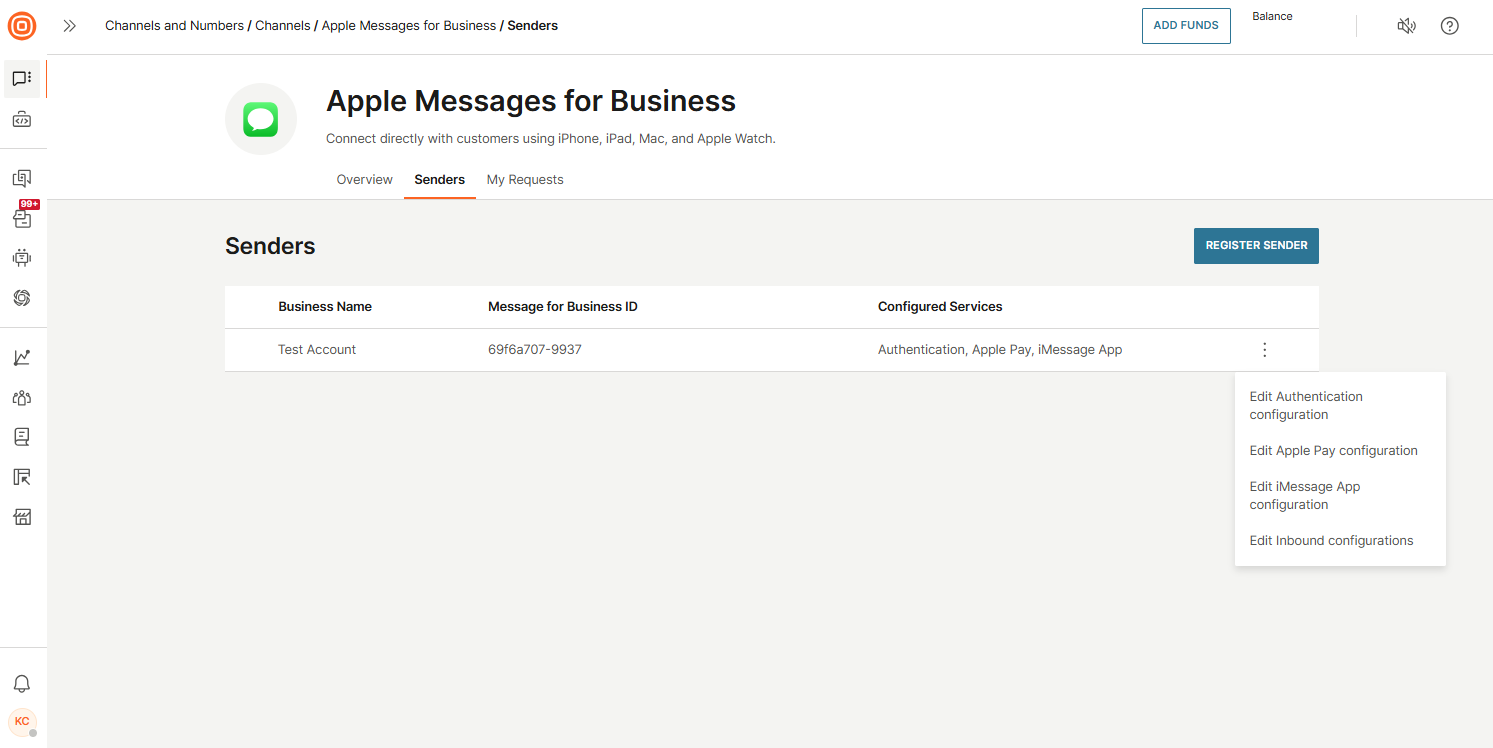
For more details on these features, visit Manage optional configurations and Configure inbound actions.
Supported message types [#supported-message-types-apple-messages-for-business]
The following table outlines supported message types depending on whether the client (mobile-terminated (MT)) sent them or the end user (mobile-originated (MO)).
Starting with iOS 27, Apple Messages for Business accepts only PNG images in rich interactive content, such as rich links, list pickers, time pickers, forms, and quick replies. This is a breaking change enforced by Apple. Regular attachments (image, video, audio, and document messages) are not affected. Make sure your rich content uses PNG images before the rollout.
| Message type | MO messages | MT messages |
|---|---|---|
| Text | ✅ | ✅ |
| Image | ✅ | ✅ |
| Audio | ✅ | ✅ |
| Video | ✅ | ✅ |
| Files | ✅ | ✅ |
| Quick replies | ✅ | Inbox API and preview in message history |
| Authentication request | ✅ | ✅ |
| Apple Pay request | ✅ | ✅ |
| iMessage App sharing | ✅ | ✅ |
| Rich link | ✅ | ✅ |
| List picker | Preview of response | Inbox API and preview in message history |
| Time picker | Preview of response | Inbox API and preview in message history |
| Typing indicator | ❌ | ✅ |
| 3D files (usdz) | ✅ (as file) | ✅ |
Specific message types [#specific-message-types-apple-messages-for-business]
Check out which specific message types you can send to end users in Apple Messages for Business:
- Authentication request support
- Apple Pay support
- iMessage app sharing support
Authentication request
To successfully authenticate a customer, use the Apple Messages for Business action inside the agent panel.
To send the Authentication request to the customer from the agent panel:
- Go to Channels and Numbers → Apple Messages for Business → Senders.
- Locate your connected accounts and select the three-dot menu.
- Select the Edit Authentication configuration action.
After configuring this feature, you can use it within the agent panel to send an authentication request to your customer:
- Select the Apple Messages for Business icon.
- Select Authentication within the Apple Messages for Business card in the agent panel.
- Fill in the required data to send the authentication request to the customer.
- Once the customer is successfully authenticated, you will see the confirmation.
Apple Pay request
To send Apple Pay requests inside the agent panel, you need to set this up in the Channels and Numbers section:
- Go to Channels and Numbers → Apple Messages for Business → Senders.
- Locate your connected accounts and select the three-dot menu.
- Select the Apple Pay configuration action.
For more details about the configuration, check the Apple Pay section.
After configuring this feature, you can use it within the agent panel to send an Apple Pay request to your customer:
- Select the Apple Messages for Business icon.
- Select Apple Pay within the Apple Messages for Business card in the agent panel.
- Fill in the required data to send the Apple Pay request to the customer.
- Once the payment is successfully processed, you will see the confirmation.
iMessage App request
To send an iMessage, you need to set this up in the channel itself:
- Go to Channels and Numbers → Apple Messages for Business → Senders.
- Locate your connected accounts and select the three-dot menu.
- Select the iMessage App configuration action.
After configuring this feature, you can use it within the agent panel to send an iMessage to your customer:
- Select the Apple Messages for Business icon in the agent panel.
- Choose the iMessage App from the drop-down menu.
- Fill in the necessary data to send the iMessage to the customer.
Satellite Messaging [#satellite-messaging-apple-messages-for-business]
Apple's Satellite Messaging feature provides mobile users with connectivity in areas without a signal. Starting with iPhone 14, users can also request roadside assistance during traffic emergencies.
This feature is integrated as a separate functionality within the Apple Messages channel, offering a streamlined experience designed to reduce unnecessary back-and-forth communication.
Key limitations and attributes include the following:
- Only text messages (up to 500 characters) can be sent; attachments are not supported.
- Customers are limited to sending:
- A roadside assistance request (only at the start of the session)
- Location updates (sent every 15 minutes, but only when the customer's phone is connected to a satellite)
- Text messages
- Satellite's session closure (the agent can still send messages to the customer for up to a year through the standard Apple Messages for Business channel)
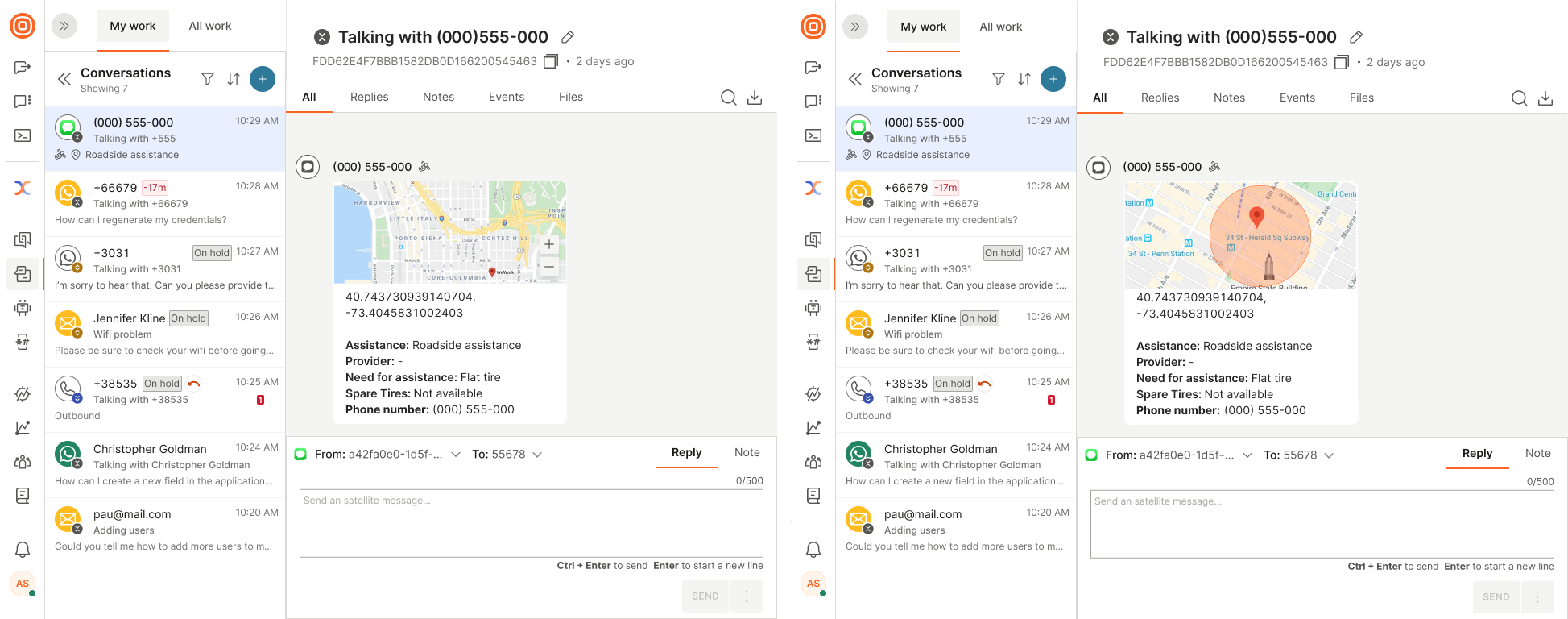
Depending on the type of message the customer sends, the agent will see it in the appropriate format, for example:
- Predefined satellite message
- Roadside assistance request that includes the customer’s location
- Approximate radius
- Details of the assistance needed
- Contact number
Apple Messages for Business forms [#apple-messages-for-business-forms-apple-messages-for-business]
Use Apple Messages for Business forms as an interactive method to enhance the customer journey in a single step. This approach allows you to collect information from customers using questions and selections, which you can reuse later.
With these forms, users can complete tasks such as surveys, troubleshooting, and account creation without leaving the chat or opening additional windows.
If you need to make edits before using the form, you must edit it in the Forms section.
To be able to use Apple Messages for Business Forms, you must have the channel activated first.
Once the channel is active, you can proceed with creating the forms:
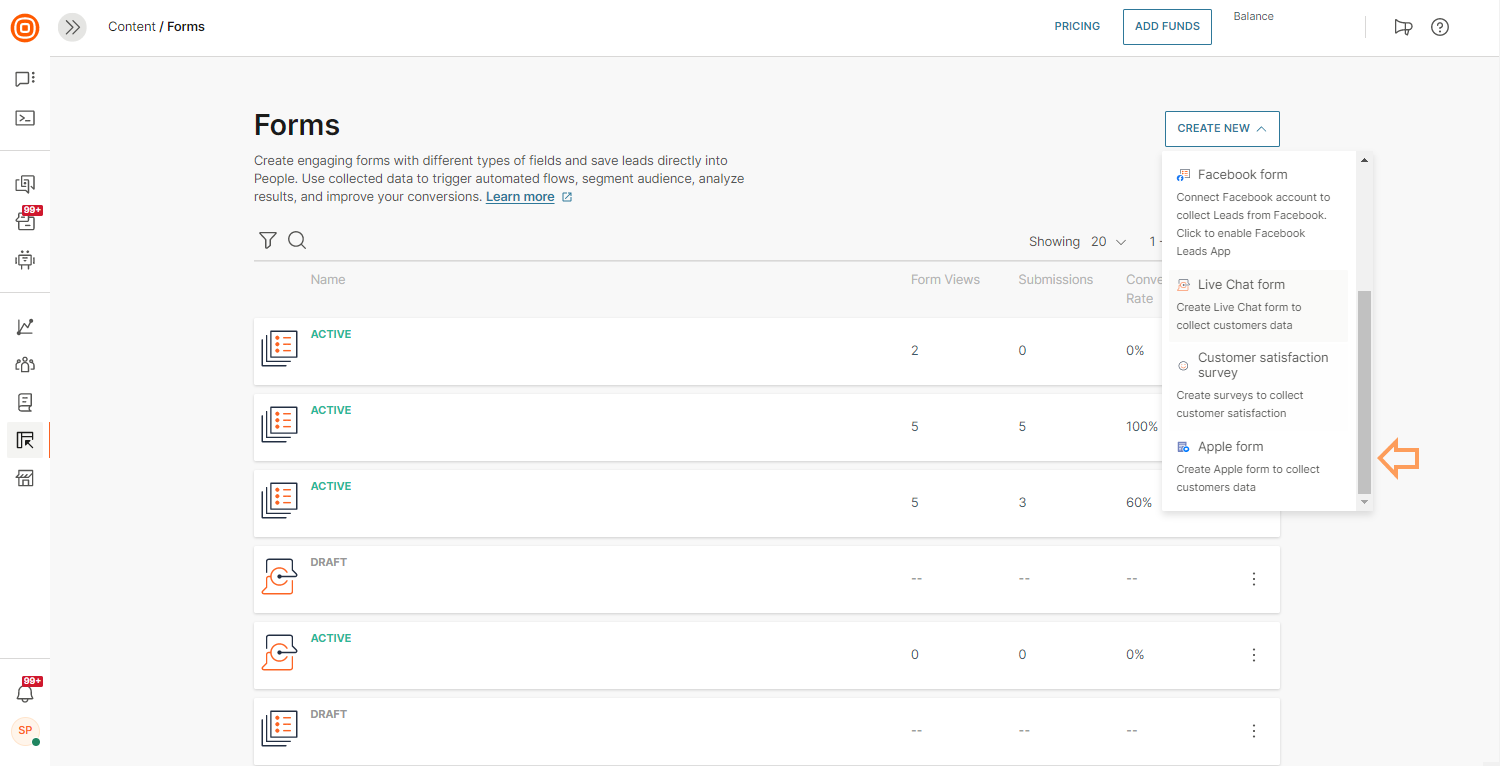
- Go to Content on the left side of the web interface.
- In the Forms tab, select the Create New button to display a drop-down menu with more options.
- Select Apple form.
- Within the editor, use the Component block to create new fields. For example, add the Radio button component and enter the form's name.
- Add options to the component, available in the side panel.
- Select Settings to choose whether the form should be marked as private if you do not want agents to see the responses, or if you want the user to see a summary of their responses before submitting the form.
- Define the processing rules for the form to update profile information in Customer Profiles, enabling its use in future marketing campaigns and funnel analytics.
- Activate the form, allowing agents to send it to customers. Customer responses will be saved in Forms and Customer Profiles.
Instagram in Inbox enables you to reply to your end user's requests, both on posts and direct messages. You can also send the first Instagram direct message to the end user from Inbox.
Activate Instagram Messaging first before you start using it. Then you can benefit from one of the most popular social media platforms by responding to your followers' posts and direct messages.
Check out our Instagram docs for more information on the channel itself.
KakaoTalk
With over 52 million global monthly active users (MAU) today, KakaoTalk is the most popular and the most used messenger application in South Korea.
Set up real-time conversations with your customers, offer live agent support, and help your agents provide the best customer service by using our Inbox solution.
To enable KakaoTalk in Inbox, contact Support or your dedicated account manager to enable the service for you.
Refer to our KakaoTalk docs for more information.
LINE
Use LINE in Inbox to offer your customers quick support and resolve issues in one-on-one conversations over their favorite communication channel.
Use lists to showcase your offerings and decrease call center operational costs.
You can use two content types in LINE in Inbox:
- Carousel message
- Button message
This should help share content with your customers, allowing for a more user-friendly customer experience.
For more information refer to the main LINE documentation.
Live Chat
Infobip Live Chat offers real-time chat communication with customers on your website or over the mobile app.
Your agents can use our customer data platform, Customer Profiles, to identify customers who logged into your website. Through People, you can collect specific behavioral data for further engagement purposes.
Customers visiting your website or using the mobile app can be classified into two types:
- Leads - An unidentified customer. It can be an existing customer or a potential customer who opens the chat widget and starts a conversation.
- Customer - A customer who has logged in at your website or mobile application and can be identified as your customer within your information system.
Leads
Leads are website users who have not been identified because they did not log in. However, Live Chat can remember visitors within the chat session and associate it with a visitor ID.
The customer card will contain the entire conversation history and their previous requests for this visitor. That way the agent can see the backstory and have an overview of the visitor’s previous questions.
Authenticated customers
Authenticated customers are the known customers who have logged in to your website.
Authenticated customers can be grouped in two ways:
- A person that exists in Customer Profiles - This is an authenticated customer who has a profile in Customer Profiles. When such a customer starts a conversation on your website, you can rely on People to provide you with additional information about this customer.
- Authenticated customer not found in Customer Profiles - This is an authenticated customer who has not been entered as a profile in Customer Profiles. This means that this customer and their email address (which is used as a key identity) do not match anyone in Customer Profiles.
Learn more about users and authentication.
Supported file types [#supported-file-types-live-chat]
The following are all the file types that both agents and customers can share over Live Chat. You will not see a lot of other file types because we want to control which ones can be shared for security purposes, as we want to make Live Chat as secure as possible.
| File type | Supported formats |
|---|---|
| Image | jpeg, bmp, gif, svg+xml, png, tiff |
| Video | x-msvideo, mpeg, quicktime, mp4 |
| Audio | aac, mp4, amr, AMR, mpeg, ogg, x-wav |
| Documents | pdf, msword, vnd.openxmlformats-officedocument.wordprocessingml.document, vnd.oasis.opendocument.text, rtf, text/plain |
| Spreadsheets | vnd.ms-excel, vnd.openxmlformats-officedocument.spreadsheetml.sheet, vnd.oasis.opendocument.spreadsheet |
| Presentations | vnd.openxmlformats-officedocument.presentationml.presentation, vnd.oasis.opendocument.presentation |
| Archives | zip, x-gzip |
| Other | xml, x-directory, javascript, json, text/html, vnd.oasis.opendocument.graphics, octet-stream |
Messenger
Use Messenger in Inbox to communicate with your customers.
You need to submit your Facebook page and Messenger channel to Facebook for review. Check the Get Started section in case you need help.
Messenger has introduced message tags that are used in mobile-terminated (MT) initiated scenarios. This means that you can send a message to a customer even 24 hours after receiving the last message.
To send a message:
- You need to select one of the three message tags predefined by Messenger.
- The message content is free-form, meaning it is not predefined by any template.
- Once a message has been sent, the tag that was used will be visible under the actual message inside the agent's desktop window.

RCS
RCS (Rich Communication Services) is an A2P messaging service that uses carriers to send messages offering rich functionality and customization in addition to the features offered by SMS and MMS.
Currently, RCS in Inbox only supports text messages.
If you want to know more about its features and technical specifications, check out the RCS documentation.
SMS
SMS (Short Message Service) is an early mobile communication channel familiar to all mobile users. SMS provides a simple and quick method for delivering text messages to all mobile devices.
Unlike other chat apps, it does not require internet connectivity and it is a secure and fast channel for two-factor authentication.
SMS requires signal coverage for messages to be delivered.
If the user is out of the signal range when the messages are sent, they will be stored for 48 hours by default (can be extended to 72 hours). The SMS will be delivered once the user is within the range.
Standard SMS messages:
- Hold up to 160 characters (or 70 characters if Unicode data coding is used).
- If more characters are used, the messages are broken into parts and reassembled when they reach the mobile phone.
- Do not support media file messages, only text characters.
For more information about SMS features and configuration, visit SMS.
Telegram
Being one of the most popular messaging apps worldwide, Telegram is also available in Inbox and agents can use it to communicate with customers.
Currently, agents can send and receive the following:
- Text
- Images
- Documents
- Audio
- Video
If a user contacts the support over Telegram, Inbox stores their data in Customer Profiles and used later on in your communication.
To enable Telegram as a channel in Inbox, refer to Telegram on our documentation Hub.
TikTok
TikTok is available in Inbox, allowing agents to handle TikTok Business Messaging directly from the Infobip web interface without building custom API integrations.
When a TikTok user sends a direct message to your TikTok Business Account, the conversation appears automatically in the Inbox.
To reply:
- Open the TikTok conversation thread.
- Select Assign to me to assign the conversation to yourself.
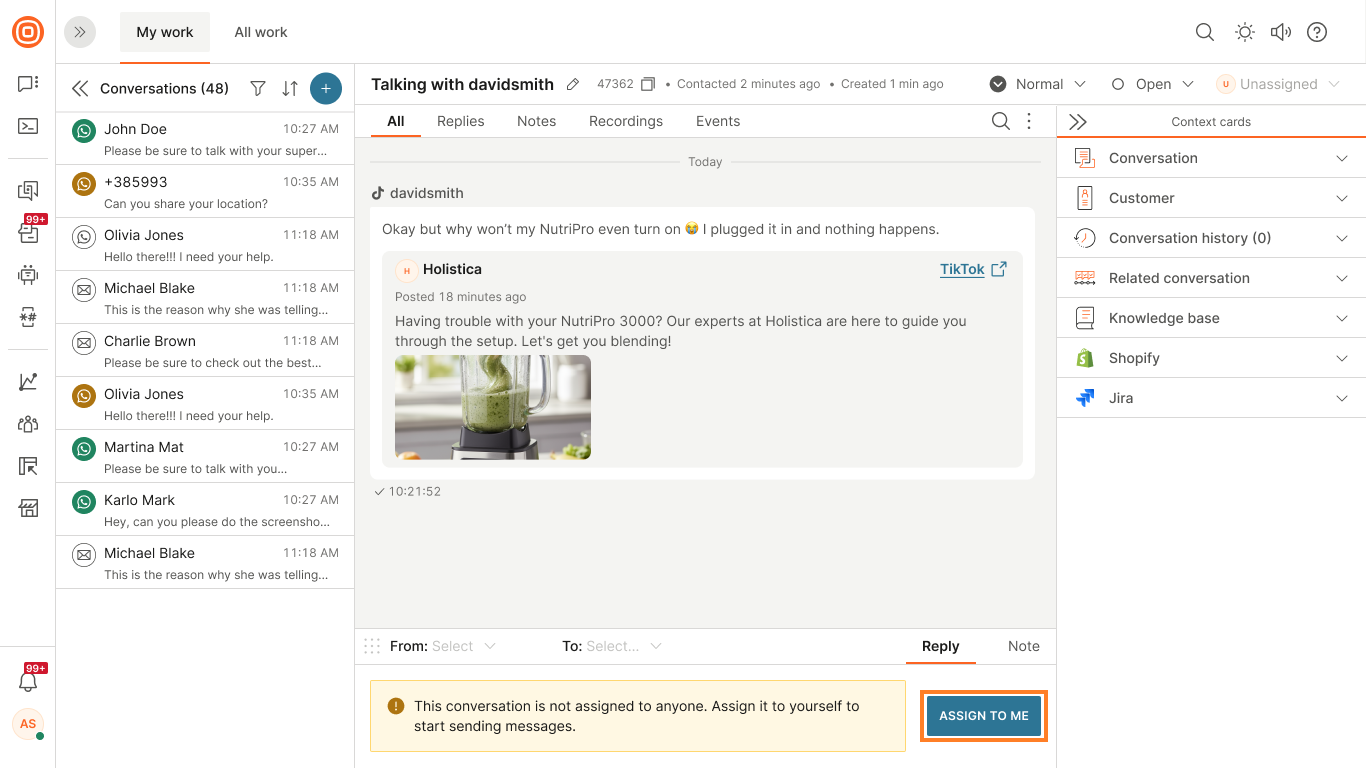
- Type a reply in the message field.
- Select Send.
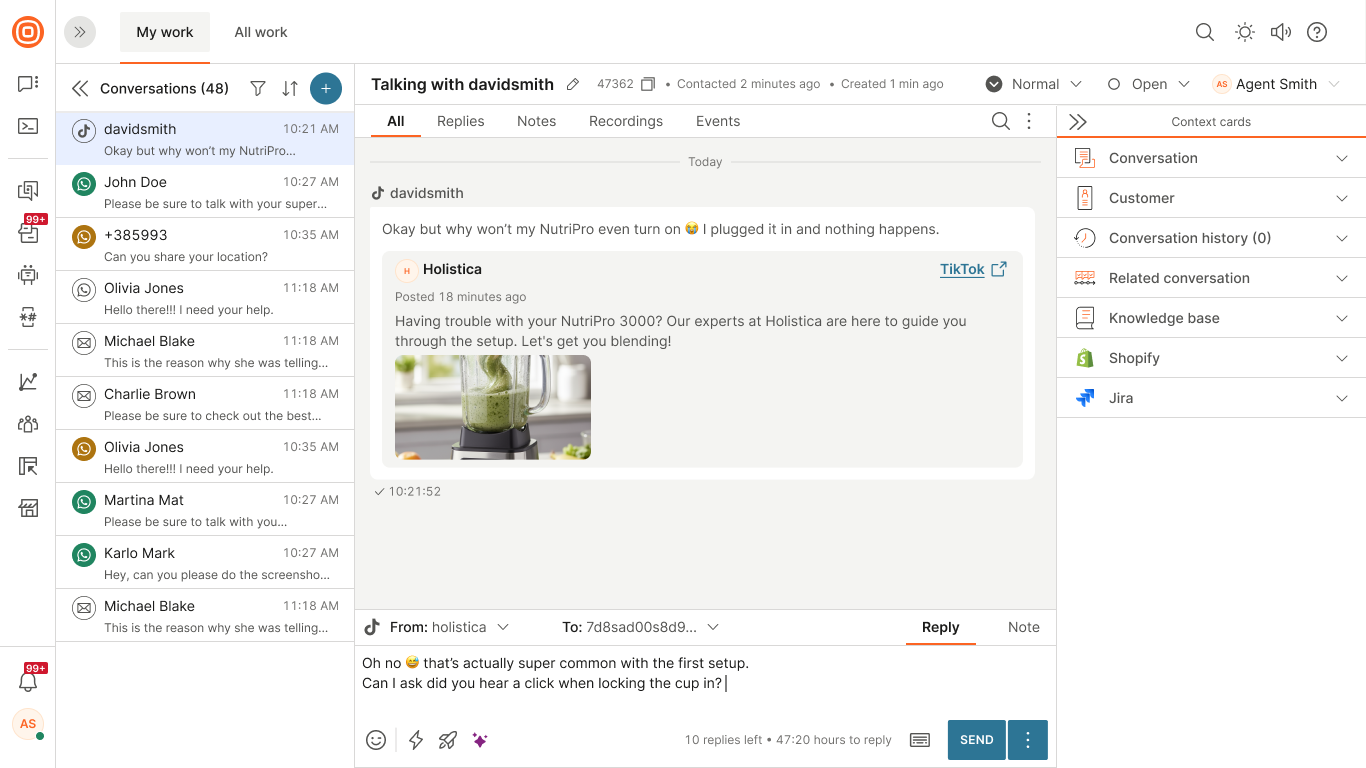
After the initial reply, both the agent and the TikTok user can continue exchanging messages in the same thread. New messages from the user appear in real time.
Messaging limits [#messaging-limits-tiktok]
TikTok Business Messaging enforces the following limits per conversation:
- Agents can send a maximum of 10 replies per conversation.
- Replies must be sent within a 48-hour window from the customer's last message. The agent panel shows the remaining replies and time left.
TikTok Direct Messaging Ads [#tiktok-direct-messaging-ads-tiktok]
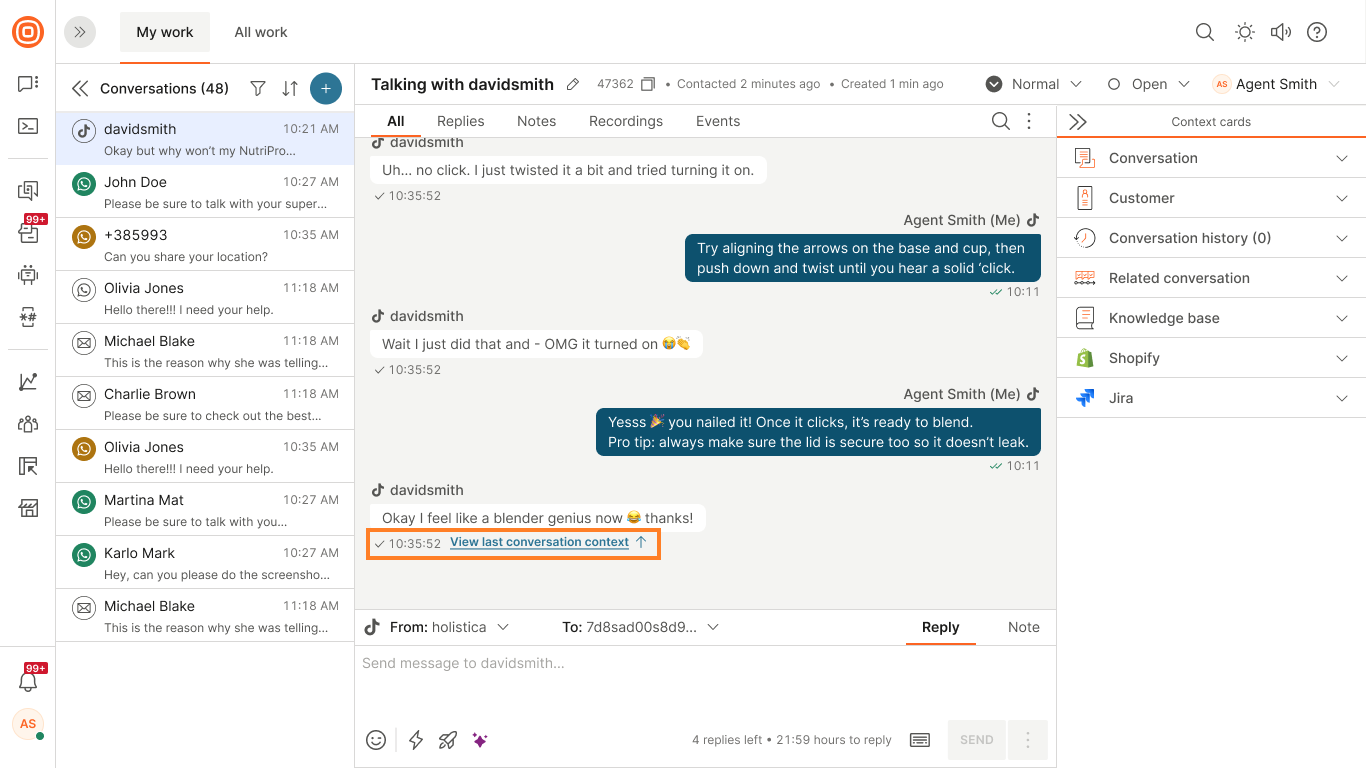
When a customer initiates a conversation by selecting a TikTok Direct Messaging Ad, the agent panel displays a View last ad preview link.
Selecting it scrolls the conversation to the ad that triggered the message, giving agents immediate context about where the customer came from.
Supported message types [#supported-message-types-tiktok]
The message types available depend on the direction of the message:
| Message type | Customer (inbound) | Agent (outbound) |
|---|---|---|
| Text | ✅ | ✅ |
| Image | ✅ | ✅ |
| Share post | ✅ | ❌ |
Customers can share a post from another TikTok creator directly in the conversation. Shared posts can contain a video or an image, including content from TikTok ads.
For more information, refer to the TikTok message types docs.
Viber
Use Viber in Inbox enables end users to communicate with your business through messages, audio, and video calls.
Send and receive files based on the following table:
| File type | File format | Max file size |
|---|---|---|
| Documents | .doc, .docx, .rtf, .dot, .dotx, .odt, .odf, .fodt, .txt, .info | 20MB |
.pdf, .xps, .pdax, .eps | 20MB | |
| Spreadsheets | .xls, .xlsx, .ods, .fods, .csv, .xlsm, .xltx | 20MB |
Viber Bots [#viber-bots-viber]
Viber Bots in Inbox enable your agents to provide better customer engagement and faster support.
With Viber Bots you can:
- Widen reach and extend conversations to new and existing customers
- Use rich media to offer a dynamic and immersive messaging experience
Channel specifics [#channel-specifics-viber]
You can only start a conversation with the customer if they have subscribed on their mobile device through Viber. If they have not subscribed, you will not be able to communicate with them using Viber Bots.
Message types [#message-types-viber]
You can use the following types of messages in Viber Bots:
| Message type | Support |
|---|---|
| Text message with keyboard | Text only |
| Picture message | Yes |
| Video message | Yes |
| File message | Yes |
| Contact message | No |
| Location message | Yes |
| Sticker message | No |
| URL message | No |
| Carousel message | No |
Supported attachment formats
| File type | Supported formats |
|---|---|
| Audio | aac, mp4, amr, mp3, ogg |
| Image | jpeg, png |
| Video | mp4 |
| Documents | pdf, doc, docx, ppt, pptx, xls, xlsx |
Use WhatsApp in Inbox to communicate with your customers over one of the most popular messaging channels.
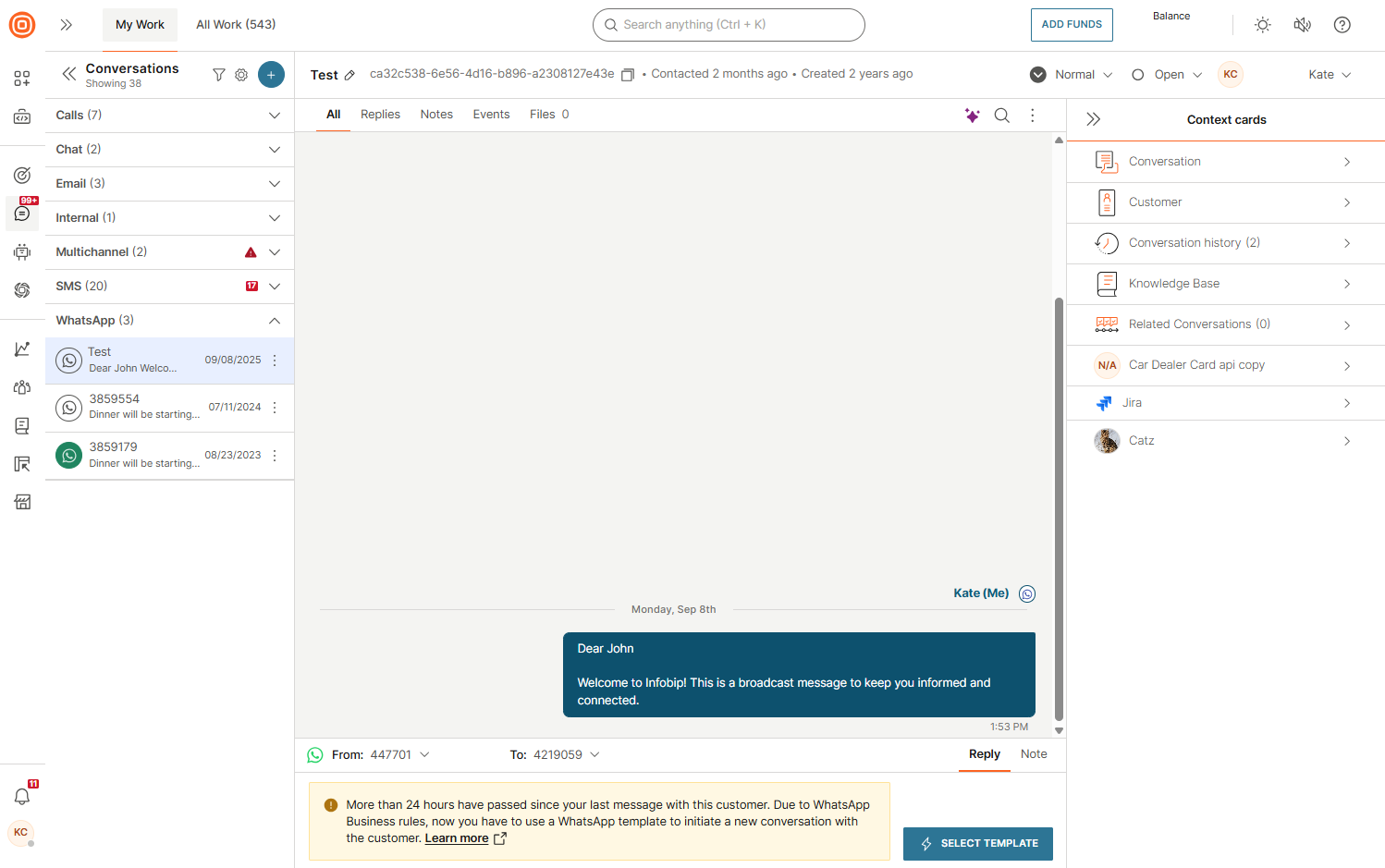
WhatsApp Business rules require a WhatsApp template to start a new conversation or to message a customer after more than 24 hours since their last message. When this applies, an alert appears in the message reply box:
Usernames and business-scoped user IDs [#usernames-and-bsuids-whatsapp]
WhatsApp users can adopt a username instead of sharing their phone number with businesses. When a user has a username, your business receives a business-scoped user ID (BSUID) instead of a phone number. A BSUID uses the format country code + period + alphanumeric characters (for example, US.13491208655302741918).
- Users without a username: you receive both their phone number and BSUID, and the conversation opens by the phone number.
- Users with a username: you receive only their BSUID. The phone number is hidden, and the conversation opens by the BSUID.
Username adoption is opt-in and does not remove phone numbers from the platform. A user's phone number remains visible if you have exchanged a message or call within the last 30 days.
This affects inbound (user-initiated) communication only. If you already have a user's phone number, you can continue sending outbound messages to it. Authentication flows (OTPs) continue to use phone numbers only.
Request contact info
A Request contact info button is always available in the message composer, since it can be used to request any information saved for the customer, not only their phone number (for example, email or birthday). If the customer consents on a conversation opened through a BSUID and shares their phone number, all subsequent messages use the phone number instead of the BSUID.
Duplicate conversations
If a customer contacts you through their username (BSUID) and also triggers an outbound message through their phone number (for example, through a Journeys flow), two separate conversations may open: one keyed to the BSUID and one to the phone number. Once the customer shares their phone number, Inbox automatically matches both conversations to the same customer.
Conversation topic
The conversation topic ("Talking to...") displays the resolved customer name based on the following priority:
- If a Customer Profiles profile exists, the profile name is used.
- If a phone number is known, the phone number is used.
- If only a BSUID is available, the BSUID is used.
For full details on BSUIDs, phone number visibility rules, and API payload changes, see Usernames and business-scoped user IDs.
WhatsApp templates in Inbox [#whatsapp-templates-whatsapp]
Use WhatsApp templates within ongoing conversations or when starting a new one. There are two types:
- WhatsApp templates with rich content: Created in Inbox for quick replies during ongoing conversations. Agents can fully edit the content before sending.
- Pre-registered WhatsApp templates: Pre-approved by Meta for starting new conversations or sending messages after the 24-hour session window. Agents can only fill in placeholders.
For setup and configuration details, see Templates.
Typing indicator [#typing-indicator-whatsapp]
WhatsApp conversations display a typing indicator, allowing both human agents and chatbots to show when they are composing a response.
Message types [#message-types-whatsapp]
Use WhatsApp product messages to send an interactive message about a product or service that is present in your catalog. Customers can ask questions about the product, add the product to the cart, and submit the cart without leaving the chat.
To send a product message, you must have a Meta catalog that is connected to your WhatsApp Business Account.
For more information, see WhatsApp message types and the Enable Meta catalog for product-based messaging section.
WhatsApp referral information [#whatsapp-referral-information-whatsapp]
The WhatsApp referral information encompasses all the essential attributes required to determine the ads your customers are coming from, enabling you to customize their experience based on this insight.
- Within your Facebook ads and posts, you have the option to incorporate the WhatsApp call-to-action feature.
- When a user selects the ad or post, they can initiate contact with an agent through WhatsApp.
- Agents can see which ad the user interacted with.
- If an ad triggers the message, the agent can see the URL, image, or video of the ad.
Contextual replies and quotes [#contextual-replies-and-quotes-whatsapp]
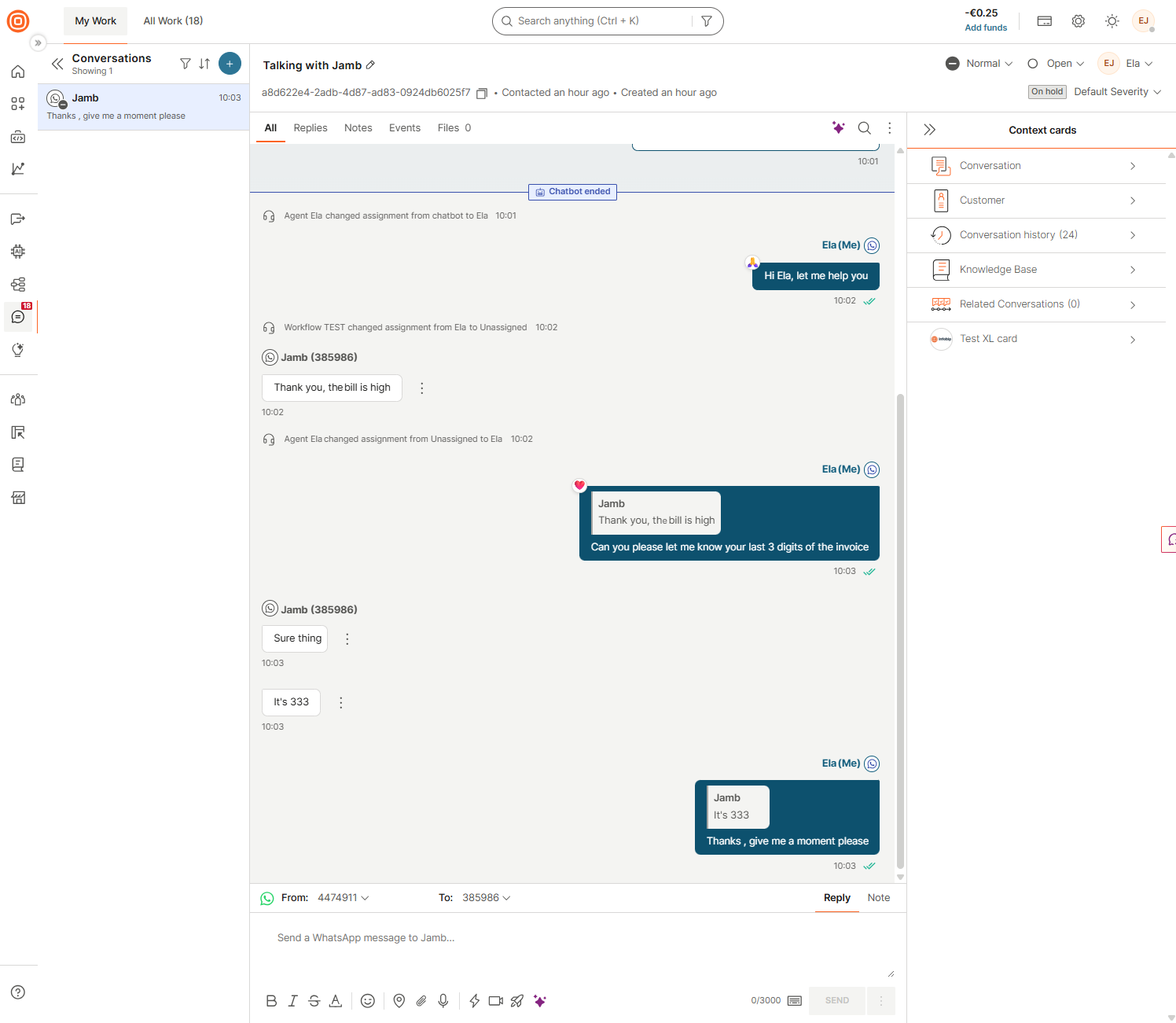
Agents and customers can link replies to specific messages in a WhatsApp conversation.
Agent contextual replies
Agents can select a specific message and reply directly to it from My Work. The reply is visually linked to the original message in the conversation.
Contextual replies are also available through the Inbox API using the Create message endpoint.
Customer quotes
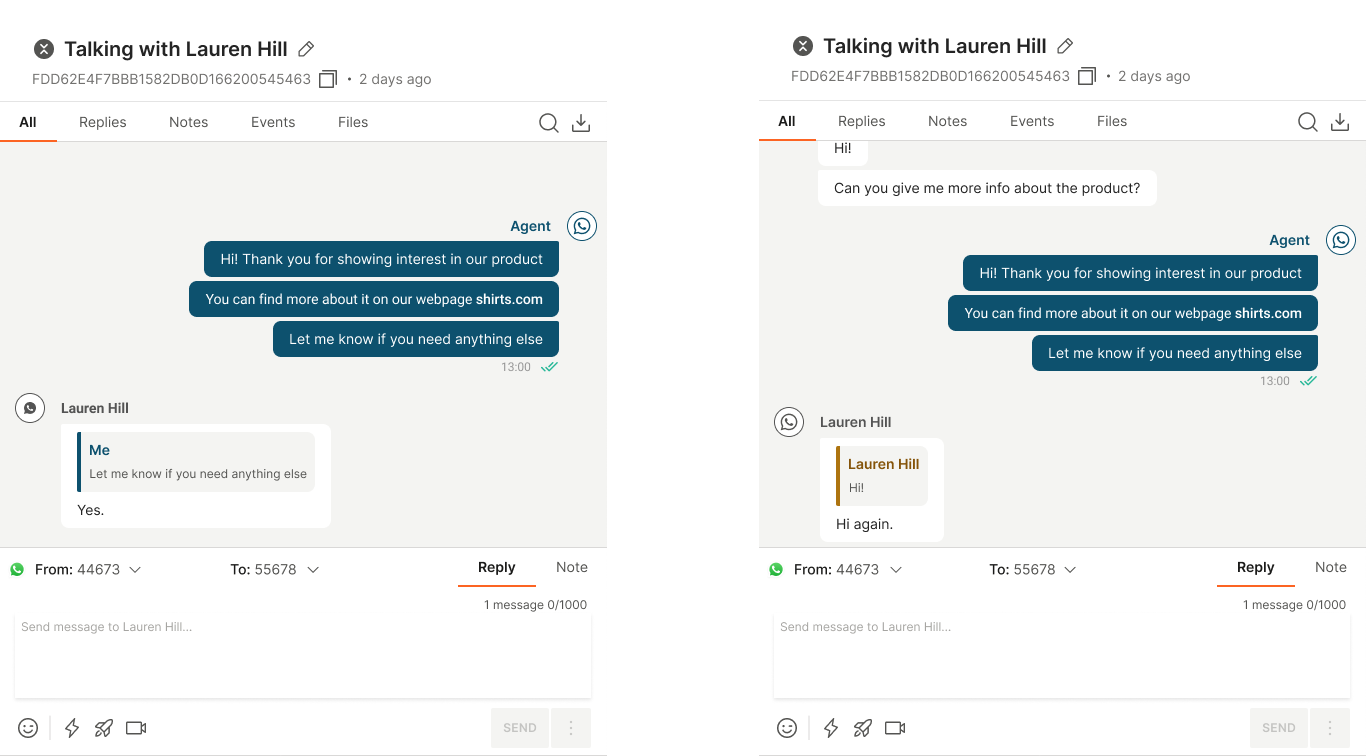
Customers can quote previous messages when sending new ones. The quoted message appears alongside the new message in the conversation.
- Customers can choose to quote either their own or the agent's previous message, which will appear alongside their new message in the conversation, giving the agent immediate context.
- Agents can preview the quoted message, as well as the actual message sent by the customer.
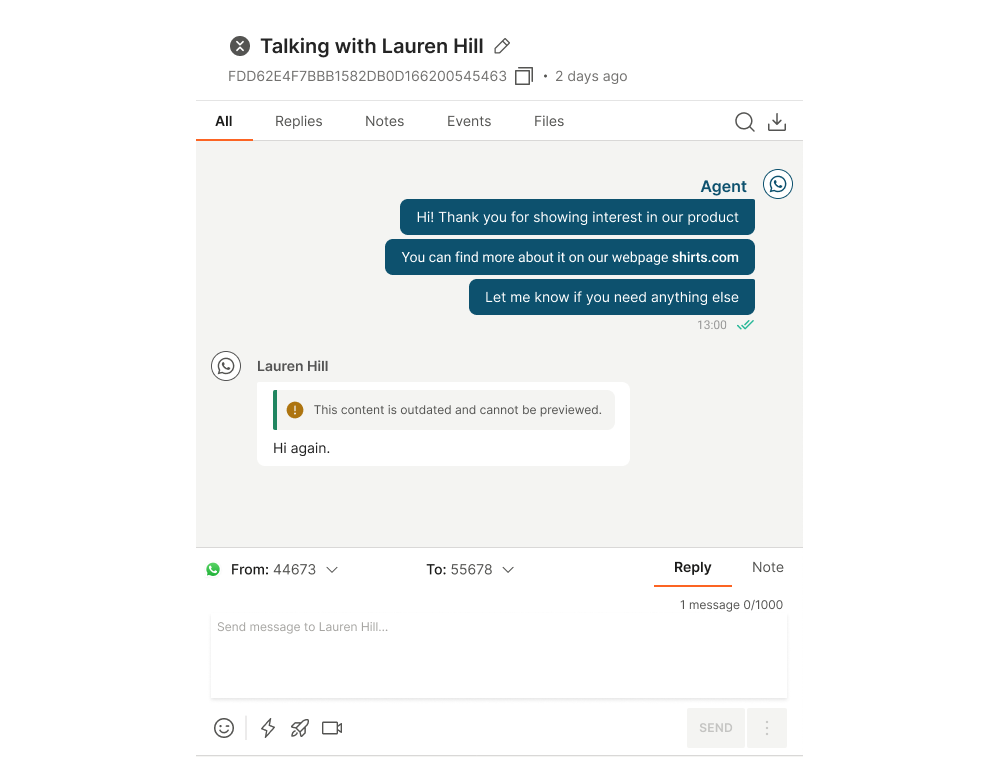
- Messages older than 30 days are not available for preview.
Supported content
The following WhatsApp content types are supported for quoting:
- Text
- Template, media template
- Image
- Document
- Location
- Video
- Voice
- Audio
- Contact, WhatsApp contact
- Button
- Sticker
- Interactive button reply
- Interactive list reply
- Product, multi product
- Order
- Text with additional data
Emoji reactions [#emoji-reactions-whatsapp]
Agents can see emoji reactions (👍, 👎, ❤️, and others) that customers send on outbound WhatsApp messages. Each reaction is displayed in the conversation view, attached to the relevant message.
Stickers [#stickers-whatsapp]
Agents can use stickers to send (over API) or receive messages to/from customers over the WhatsApp channel.
Zalo
Zalo is the most popular messaging app in Vietnam. With Zalo in Inbox, agents can handle two-way Zalo Official Account (OA) messaging directly from the Infobip web interface, alongside your other chat apps.
When a customer messages your Zalo Official Account, the conversation appears automatically in Inbox and an agent can reply. Zalo conversations show the correct channel icon and can be filtered and searched like any other channel.
Supported message types [#supported-message-types-zalo]
| Message type | Outbound (agent) | Inbound (customer) |
|---|---|---|
| Text | ✅ | ✅ |
| Image | ✅ | ✅ |
| File | ✅ | ✅ |
| Link | ❌ | ✅ |
| Location | ❌ | ✅ |
| Audio | ❌ | ✅ |
| Video | ❌ | ✅ |
For more information about the channel, refer to the Zalo docs.