Integrate WhatsApp using the Infobip API
Infobip's WhatsApp Business API ↗ is a scalable solution that enables businesses to programmatically send and receive messages by integrating WhatsApp as their communication channel, while meeting WhatsApp platform requirements and supporting secure communication.
This guide helps you authenticate, configure, and send messages, track delivery, and monitor customer interaction all using Infobip's API.
 Learn more
Visit the Infobip WhatsApp API documentation for full endpoint specifications, request examples, and response parameters.
What you can do with the WhatsApp API
Use the WhatsApp Business API ↗ to:
- Create and send message templates and free-form messages.
- Receive and respond to inbound user messages.
- Track delivery, seen status, and user actions.
- Subscribe to key events (for example, clicks, opt-ins, payments).
- Shorten and track URLs inside template buttons with engagements analytics.
This API supports full-cycle communication, from onboarding and transactional alerts to rich, two-way customer service.
Set up authentication and configuration
Before you start sending or receiving messages, follow these steps:
- Authenticate your integration using the API Authentication guide.
- Configure sender behavior and inbound message routing in the Edit configuration section.
- Assign a global webhook URL in your configuration or override it per message using the
notifyURLparameter.
Event subscription [#event-subscription-message-templates]
When using WhatsApp, subscriptions allow you to track and receive notifications for specific events during communication. These events, such as message delivery or user interactions, trigger notifications that are sent to your designated webhook, helping you monitor the progress and status of WhatsApp messages. Once a template is tied to a particular applicationID or entity ID, you can create a subscription to receive template updates.
For WhatsApp, you can track the following event types:
| Event type | Description |
|---|---|
ACCOUNT_REGISTRATION | Notifies you when an account registration occurs. You can also track registration failure reasons and view business portfolio ID through this event. |
ACCOUNT_UPDATE_NOTIFICATION | Notifies you about updates to your WhatsApp Business account. |
BILLING | Provides updates related to account billing. |
BUSINESS_APP_CONTACT_SYNC | Notifies you when the WhatsApp Business app synchronizes contact information with Infobip. |
CLICK | Tracks when a user clicks on a button or link within the message. |
DELIVERY | Indicates that the message was successfully delivered to the recipient. |
IDENTITY_CHANGE | Notifies you when an end user's WhatsApp identity changes. |
INBOUND_MESSAGE | Alerts you when a new inbound message is received from an end user. |
MARKETING_SUBSCRIPTION_UPDATE | Notifies you when an end user opts in or out of receiving marketing messages. |
PAYMENT_STATUS | Monitors the status of payment-related messages. |
SEEN | Confirms that the recipient has seen the message. |
TEMPLATE_UPDATE | Provides updates when a message template changes. |
To set up event notifications, use the Subscriptions management API, where you can define subscription rules specifying which events to track and which webhooks should receive notifications. You can create multiple subscriptions to manage different events or route notifications to different webhooks.
For more details, refer to the Subscriptions management page.
Delivery reports
Use the API to track the performance of your communications. The following reports are forwarded to a defined endpoint:
Alternatively, you can specify the endpoint for each message by using the notifyURL parameter. This allows you to customize where message status reports are sent for individual messages, overriding any global configuration settings.
Dynamic template button URLs with shortening and tracking
WhatsApp message templates support two types of button URLs:
- Static URLs: Fully registered with Meta, including all parameters.
- Dynamic URLs: More flexible. You must still register the domain with Meta, but you can define placeholder parameters that are populated using the Infobip WhatsApp API when sending the message.
A template can include a maximum of 10 buttons. However, you can only add up to two dynamic button URLs.
You can shorten and track dynamic button URLs when creating templates over the API.
To enable this feature, ensure that during template creation you:
- Register a custom domain.
- Add the domain under the
shorteningOptionsobject. - For dynamic URLs, add a placeholder (for example,
{{1}}) at the end of the URL inside the template structure.
After the template is registered and you are ready to send it:
- For dynamic links, define the placeholder value and add the custom domain under
urlOptions. - For static links, no additional configuration is required.
Each link is assigned a dynamic ID when the message is sent. This allows Infobip to track customer clicks.
For more information on setting up URL shortening, refer to the URL shortening and tracking page.
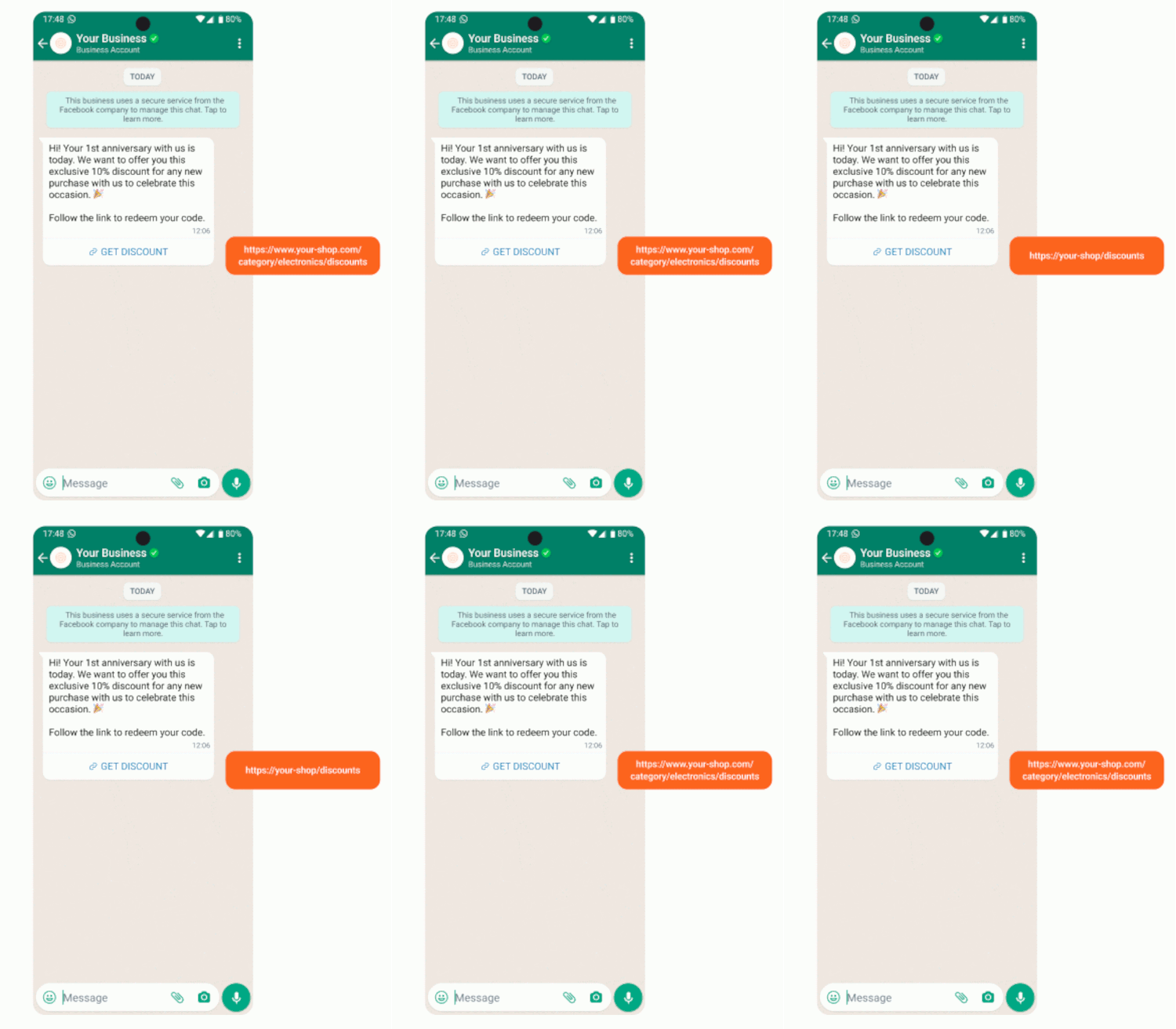
You can use the following sample request to create a WhatsApp message template with a trackable shortened button URL:
The shorteningOptions object defines the URL shortening settings for the template, including the customDomain property, which is necessary for generating trackable shortened URLs. Do not to modify this object outside the Infobip system, as this could result in errors.
Similarly, you can also send a template with a trackable shortened button URL.
When you send a template message request, the customDomain must match the domain used during template creation. Otherwise, the request will fail.
Application and entity assignment [#application-and-entity-assignment-message-templates]
You can assign applicationId and entityId to templates during creation, editing, and retrieval, making the process of managing templates assigned to specific applications or entities flexible.
To learn more about applications and entities, refer to the Application and entity management article.
Supported template languages
Below is the full list of supported languages and their corresponding ISO codes. For languages with regional variations, expand the sections to see all available codes.
Other supported languages
This list includes all other supported languages with a single available code.
| Language | Code | Language | Code |
|---|---|---|---|
| Afrikaans | af | Albanian | sq |
| Azerbaijani | az | Belarusian | be_BY |
| Bulgarian | bg | Catalan | ca |
| Croatian | hr | Czech | cs |
| Danish | da | Dari | prs_AF |
| Estonian | et | Filipino | fil |
| Finnish | fi | Georgian | ka |
| Greek | el | Gujarati | gu |
| Hausa | ha | Hebrew | he |
| Hindi | hi | Hungarian | hu |
| Indonesian | id | Irish | ga |
| Italian | it | Japanese | ja |
| Kannada | kn | Kazakh | kk |
| Kinyarwanda | rw_RW | Korean | ko |
| Kyrgyz (Kyrgyzstan) | ky_KG | Lao | lo |
| Latvian | lv | Lithuanian | lt |
| Macedonian | mk | Malay | ms |
| Malayalam | ml | Marathi | mr |
| Norwegian | nb | Pashto | ps_AF |
| Persian | fa | Polish | pl |
| Punjabi | pa | Romanian | ro |
| Russian | ru | Serbian | sr |
| Sinhala | si_LK | Slovak | sk |
| Slovenian | sl | Swahili | sw |
| Swedish | sv | Tamil | ta |
| Telugu | te | Thai | th |
| Turkish | tr | Ukrainian | uk |
| Urdu | ur | Uzbek | uz |
| Vietnamese | vi | Zulu | zu |
Ready to integrate WhatsApp API?
Get started with Infobip's WhatsApp API and build powerful messaging experiences.
Send WhatsApp messages in Infobip solutions
Send messages through Broadcast, Moments, Conversations, or the API.
Reports and insights
Track delivery, seen events, and message analytics.
Manage your WhatsApp integration
Learn about messaging windows, quality ratings, and messaging limits.