Tags
Tags are labels you can create to find and sort your journeys. Once created, tags can be applied to individual journeys so you can filter and group them on the Journeys tab.
Tags in Journeys are the same campaign tags used across other Infobip products. Manage them centrally from Automation Studio > Journeys > Tags.
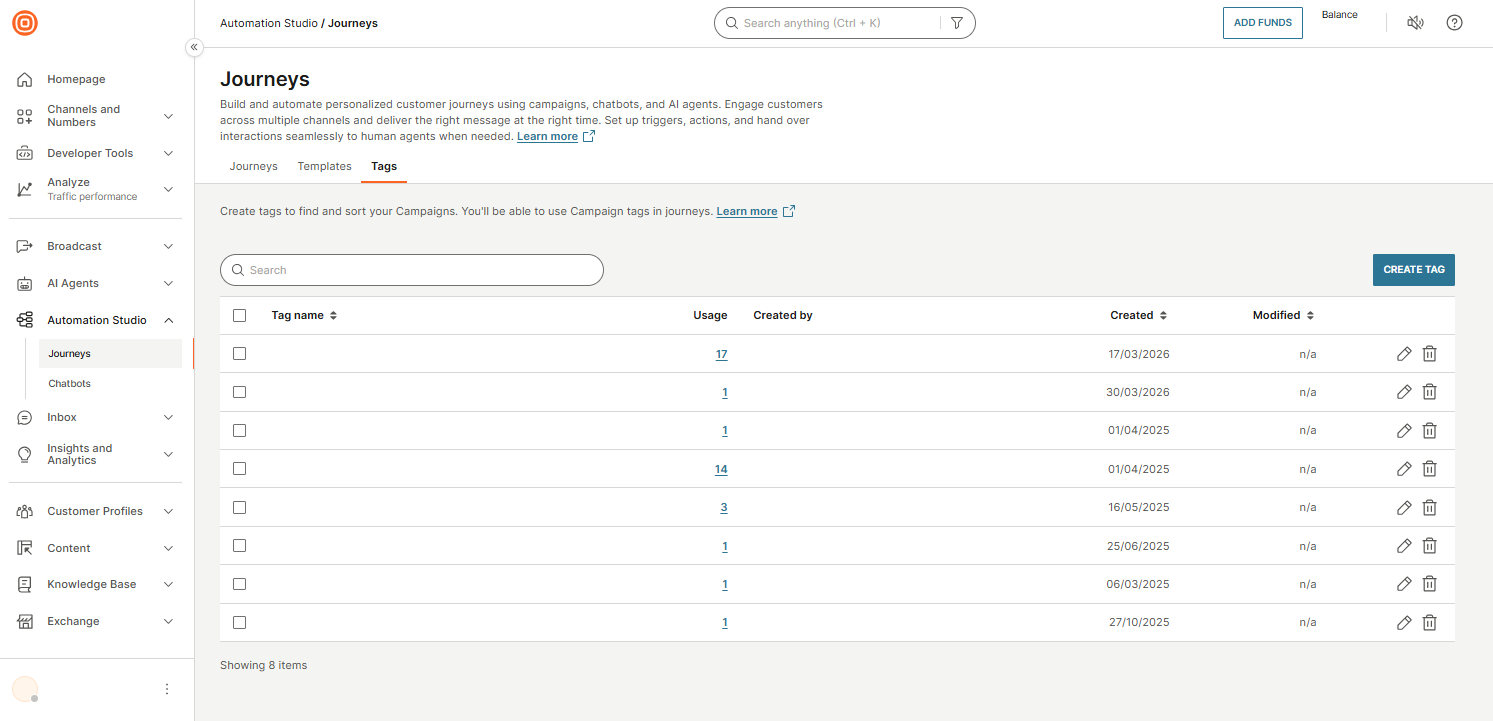
Tags page
The Tags tab lists all campaign tags available in your account.
| Column | Description |
|---|---|
| Tag name | The name of the tag. Select the column header to sort alphabetically. |
| Usage | The number of campaigns the tag is applied to. Select the number to open a side panel that shows which campaigns use this tag, grouped by type (for example, Broadcast Templates). |
| Created by | The user who created the tag. |
| Created | The date the tag was created. Select the column header to sort by date. |
| Modified | The date the tag was last modified. Select the column header to sort by date. |
Each row has an edit icon and a delete icon. Use the checkbox on each row to select multiple tags for bulk actions.
By default, the list shows 10 tags per page. Use the items-per-page selector to change this. Navigate between pages using the page controls at the bottom right of the table.
Actions
- Create Tag: Opens a dialog to create a new tag.
- Search: Find a tag by name.
Create a tag
- Go to Automation Studio > Journeys > Tags.
- Select Create Tag.
- In the Create a new tag dialog, enter a name for the tag.
- Select Create Tag.
The tag is now available to apply to journeys.
Add tags to a journey [#add-tags-to-journey]
You can add tags to a journey from the journey editor footer.
- Open a journey in the journey editor.
- In the footer, select Campaign tags.
- Select or search for the tag you want to add.
For more information, see Campaign tags.
Filter journeys by tag [#filter-by-tag]
- On the Journeys tab, select the Filter icon.
- Under Tags, select one or more tags.
The journey list updates to show only journeys with the selected tags. For more about filtering, see Search and filter.
Edit or delete a tag
To edit a tag, select the edit icon on the tag's row, update the name, and confirm.
To delete a tag, select the delete icon on the tag's row and confirm. Deleting a tag removes it from all journeys it was applied to.