AI Video Editor
AI Video Editor generates personalized demo videos of RCS business conversations from text prompts. You describe the scenario, and the system produces a complete animated conversation with proper formatting, buttons, and rich cards.
The generated videos can preview conversations on both Android and iOS platforms, so you can see how the RCS experience appears to end users on each device.
Use AI Video Editor to:
- Explore use cases: Quickly visualize how RCS messaging works for specific business scenarios.
- Create demo content: Generate shareable videos that showcase RCS capabilities without involving a creative team.
- Ideate and iterate: Test different conversation flows, tones, and message types in minutes.
- Preview across platforms: See how conversations render on Android and iOS devices.
AI Video Editor is in Early Access. The feature is evolving and functionality may change.
How AI Video Editor works [#how-ai-video-editor-works]
-
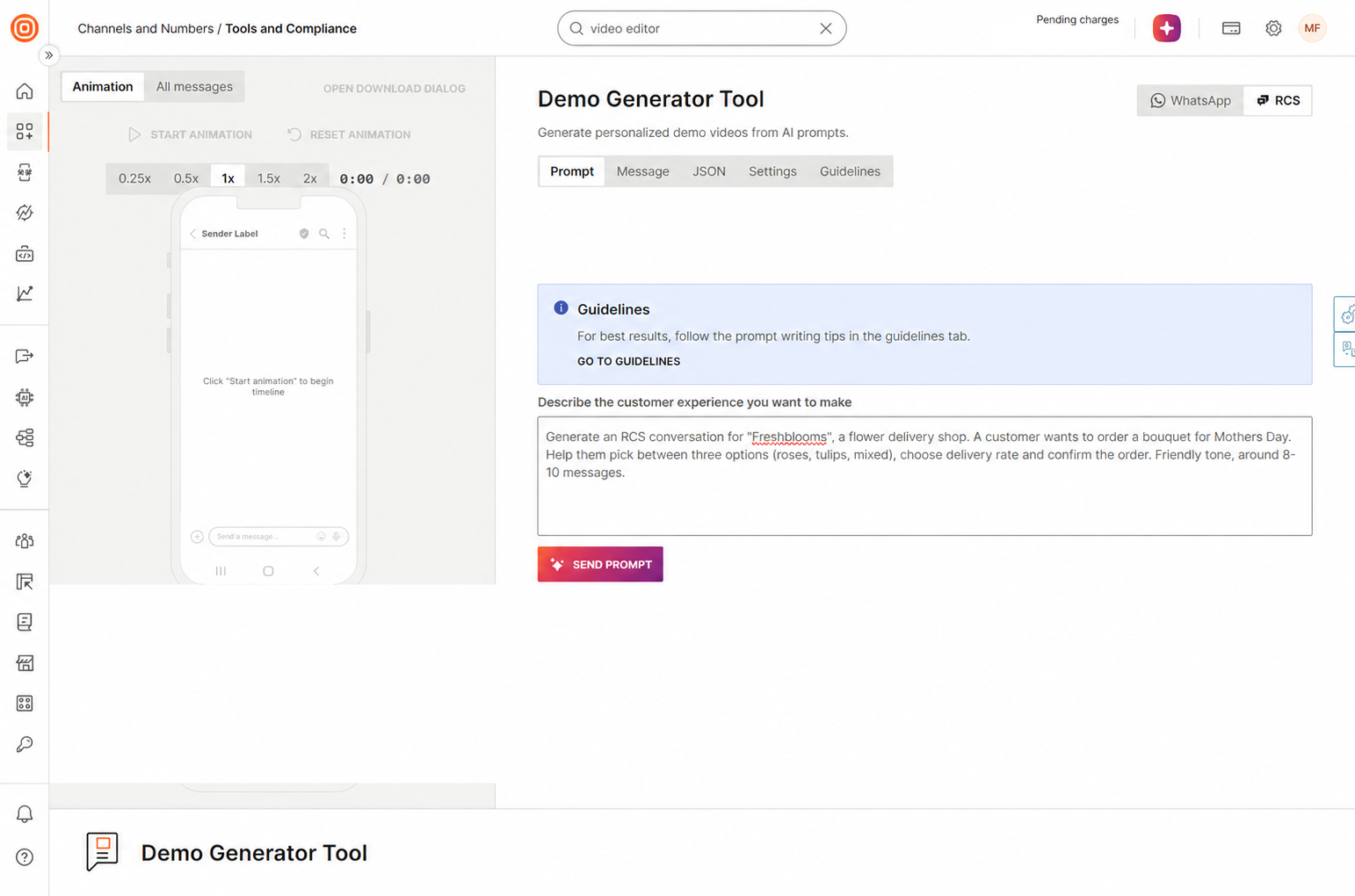
In the web interface, go to Channels and Numbers > Tools and Compliance.
-
Select the Demo Generator tool and select RCS next to it.
-
Write a prompt that describes the customer experience you want to showcase and select Send prompt.
-
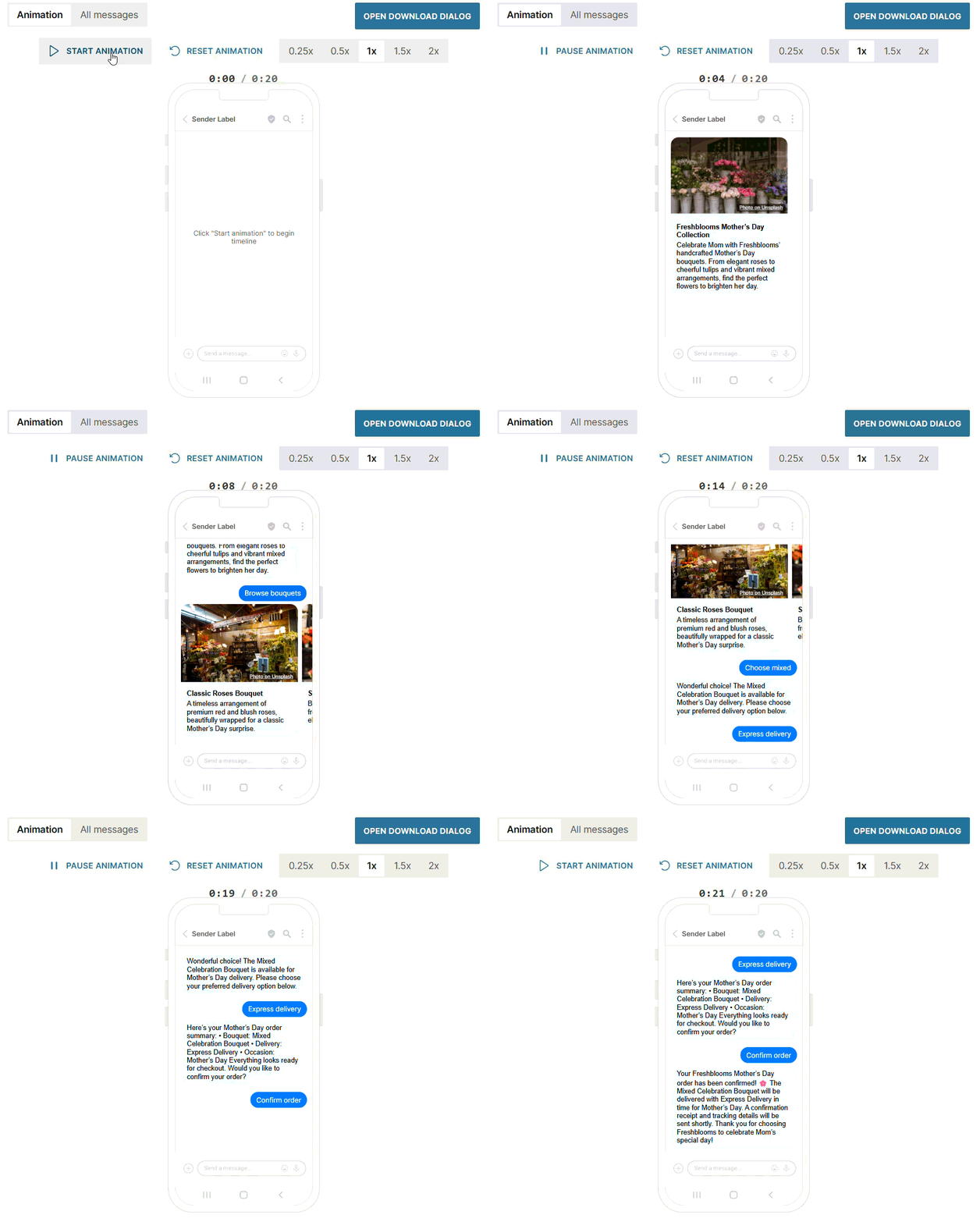
The system generates a complete RCS conversation with message formatting, buttons, rich cards, and other interactive elements.
-
Preview the animated conversation.
- Use Start animation, Pause animation, and Reset animation to control playback. The timer shows the current position and total duration.
- Switch between Android and iOS to preview how the conversation appears on each platform.
-
Switch to the Message tab to edit message content, headers, footers, and button text.
- Select any generated element to modify it directly. You can add up to 3 buttons per message and configure button sections with titles and rows.
-
Use the JSON tab to inspect or modify the underlying message structure for advanced use cases.
-
In the Settings tab, configure the Sender Label (the business name shown in the conversation) and the Sender Avatar URL (the profile image displayed next to messages).
-
If the result is not what you need, rewrite the original prompt with adjustments and generate again.
-
When you are satisfied with the result, select Done Designing and then Open download dialog to export the video.
Write effective AI prompts [#write-effective-prompts]
The quality of the generated conversation depends on the detail and clarity of your prompt. Each request is processed independently, and the system does not retain context from previous prompts.
If the output does not match your requirements, rewrite the full prompt with your adjustments instead of sending a follow-up correction.
Tips for better prompts [#tips-write-effective-prompts]
- Name the business: Produces branded, realistic messages instead of generic ones.
- Specify the language: Write the prompt in your target language or state it explicitly (for example, "in Spanish").
- State the message count: Prevents overly long or short conversations (for example, "around 8 messages").
- Describe the flow: Outline the step-by-step flow for more predictable results.
- Mention message types: If you want buttons or rich cards, say so. Otherwise, the system decides.
- Set the tone: A single word like "friendly", "formal", "casual", or "reassuring" makes a difference.
- Include all details in one prompt: Put everything in a single, self-contained description.
What to avoid [#avoid-write-effective-prompts]
- Vague prompts: Provide context about who, what, and why. Prompts like "generate a conversation" produce generic results.
- Follow-up corrections: Requests like "change the second message" do not work. Rewrite the full prompt instead.
- Prohibited content: The system enforces content policies and does not generate content involving weapons, drugs, financial schemes, adult content, discriminatory language, or deceptive practices.
- Sensitive data collection: Conversations that ask users for payment card numbers, social security numbers, or other sensitive identifiers are rejected or sanitized.
Prompt examples [#prompt-examples]
The following examples show three levels of prompt detail. More specific prompts produce more predictable results.
Minimal prompt
Generate an RCS conversation for a flower shop helping a customer choose a bouquet for Mother's Day.
Recommended prompt
Generate an RCS conversation for "FreshBlooms", a flower delivery shop. A customer wants to order a bouquet for Mother's Day. Help them pick between 3 options (roses, tulips, mixed) using rich cards, choose a delivery date, and confirm the order. Friendly tone, around 8-10 messages.
Full control prompt
Generate an RCS conversation in Spanish for "TechFix", an electronics repair service. A customer's laptop screen is cracked. The bot should:
- Greet and ask what device needs repair
- Present repair options as a rich card carousel (screen replacement, diagnostic, express)
- Ask for drop-off date using suggested reply buttons (Today, Tomorrow, Next week)
- Confirm the appointment with a summary
Professional but approachable tone. 10-12 messages.
Limitations [#limitations]
- AI Video Editor is in Early Access. Features and behavior may change.
- Each prompt is processed independently. The system does not retain context from previous prompts.
- To adjust output, rewrite the full prompt rather than sending follow-up corrections.
- Generated content must comply with applicable content policies. The system does not support prompts that request prohibited content.
- The system rejects or sanitizes prompts that request collection of sensitive personal data (for example, payment card numbers or social security numbers).