Export person profiles
You can export person profiles into a file. To export profiles for Facebook custom audience, see Export profiles for Facebook custom audience.
Before exporting, ensure your data meets these requirements:
- Country field must be in one of these formats:
- Valid country name in English
- Two-letter ISO country code without spaces (example: IN for India)
- The following fields must not contain commas: First name, Last name, City, Country
Export profiles
To export profiles as a XLSX file:
-
Go to Persons.
-
Select the profiles that you want to export.
Profiles that do not have any data in the attributes or destination are not exported. So, the number of selected profiles might be different from the number of profiles in the exported file.
-
Select Export.
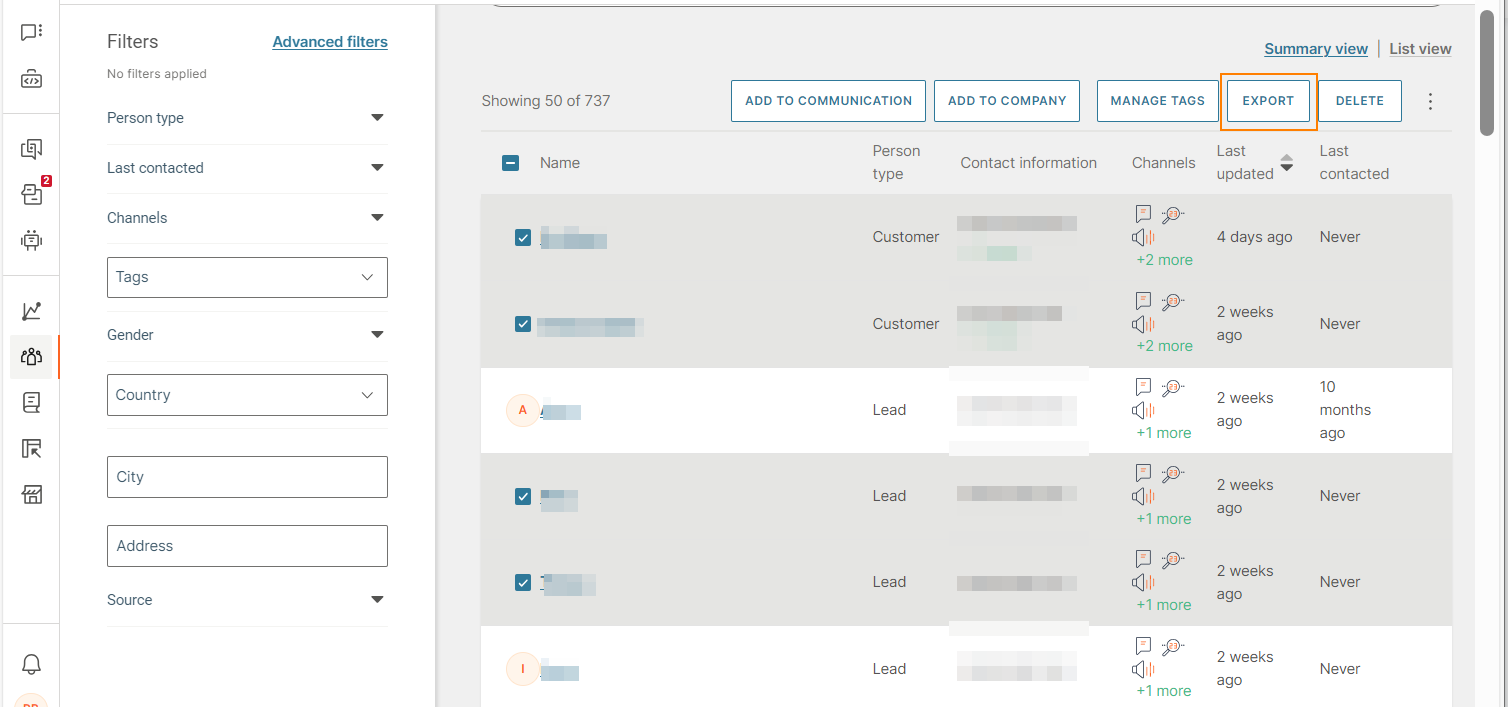
-
In the Export person profiles window → Select attributes tab, select the fields that you want to export for the profiles. You can select standard attributes, contact information, and custom attributes.
-
You can use the search bar in the Export person profiles.
Date and time attributes are exported in ISO 8601 format. For example, Date: yyyy-MM-dd (2026-03-12); Date and Time (in UTC): yyyy-MM-dd'T'HH:mm:ss.SSS (2026-03-12T10:17:07.000)
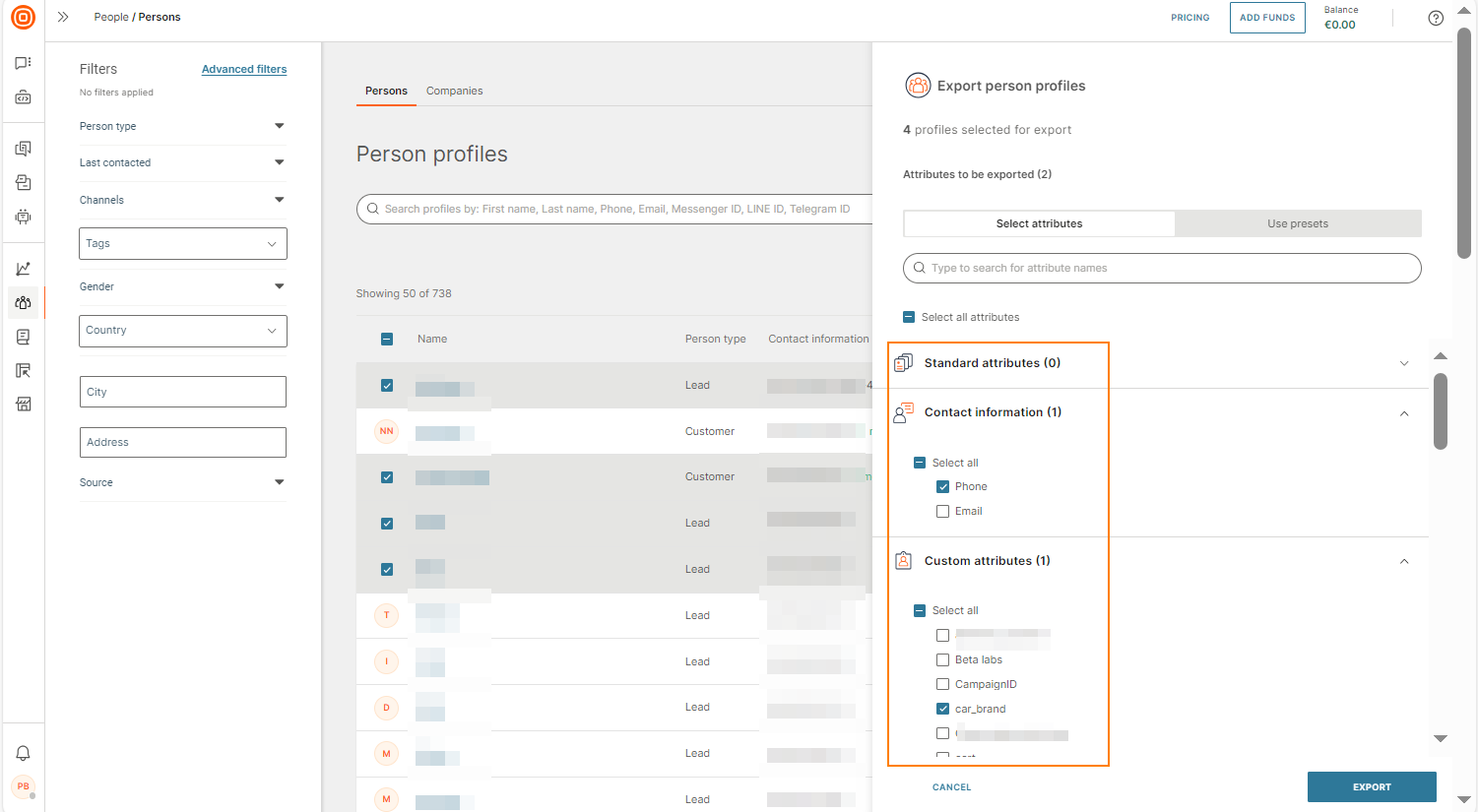
-
Select Export.
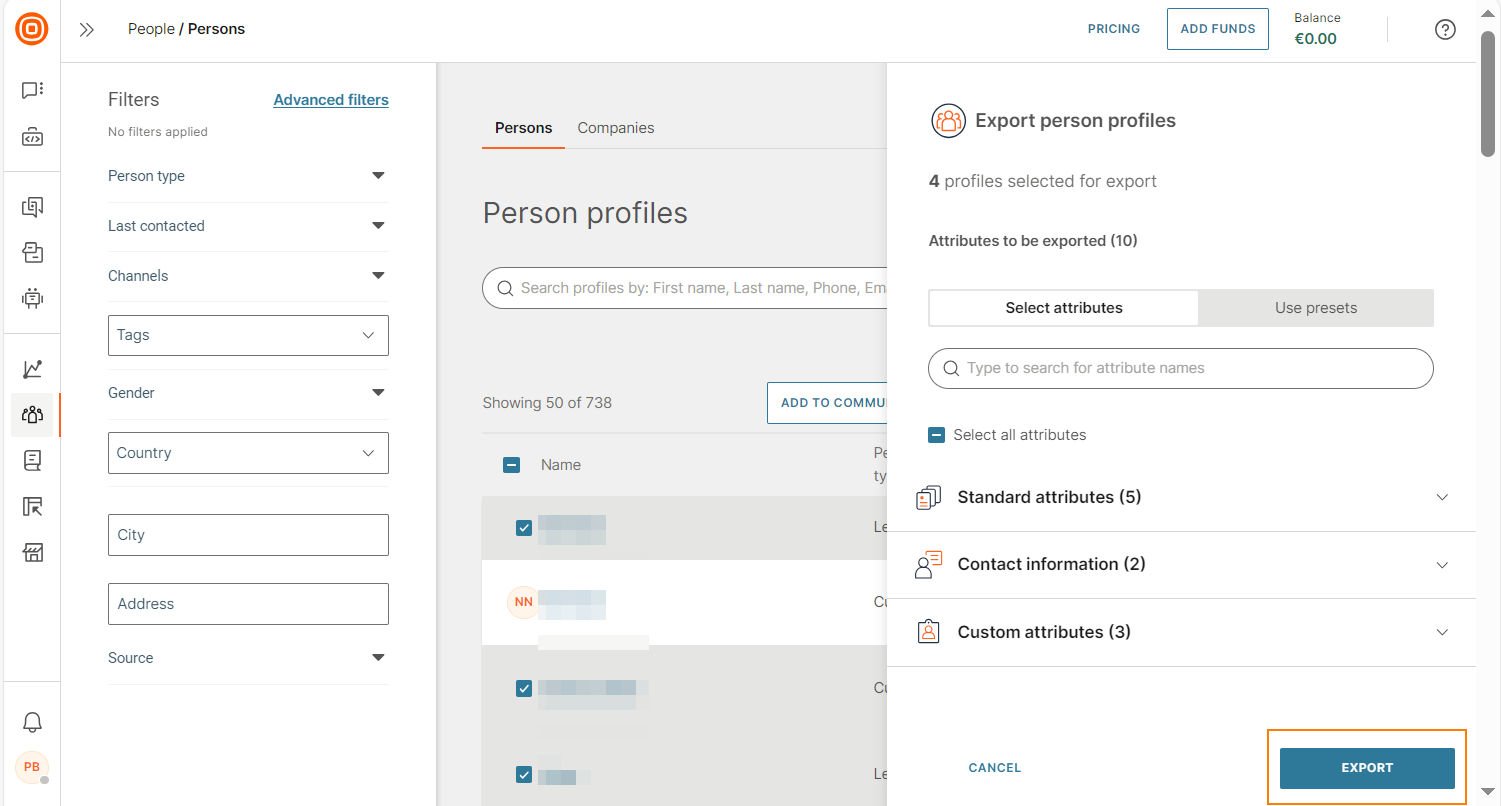
-
The export starts immediately.
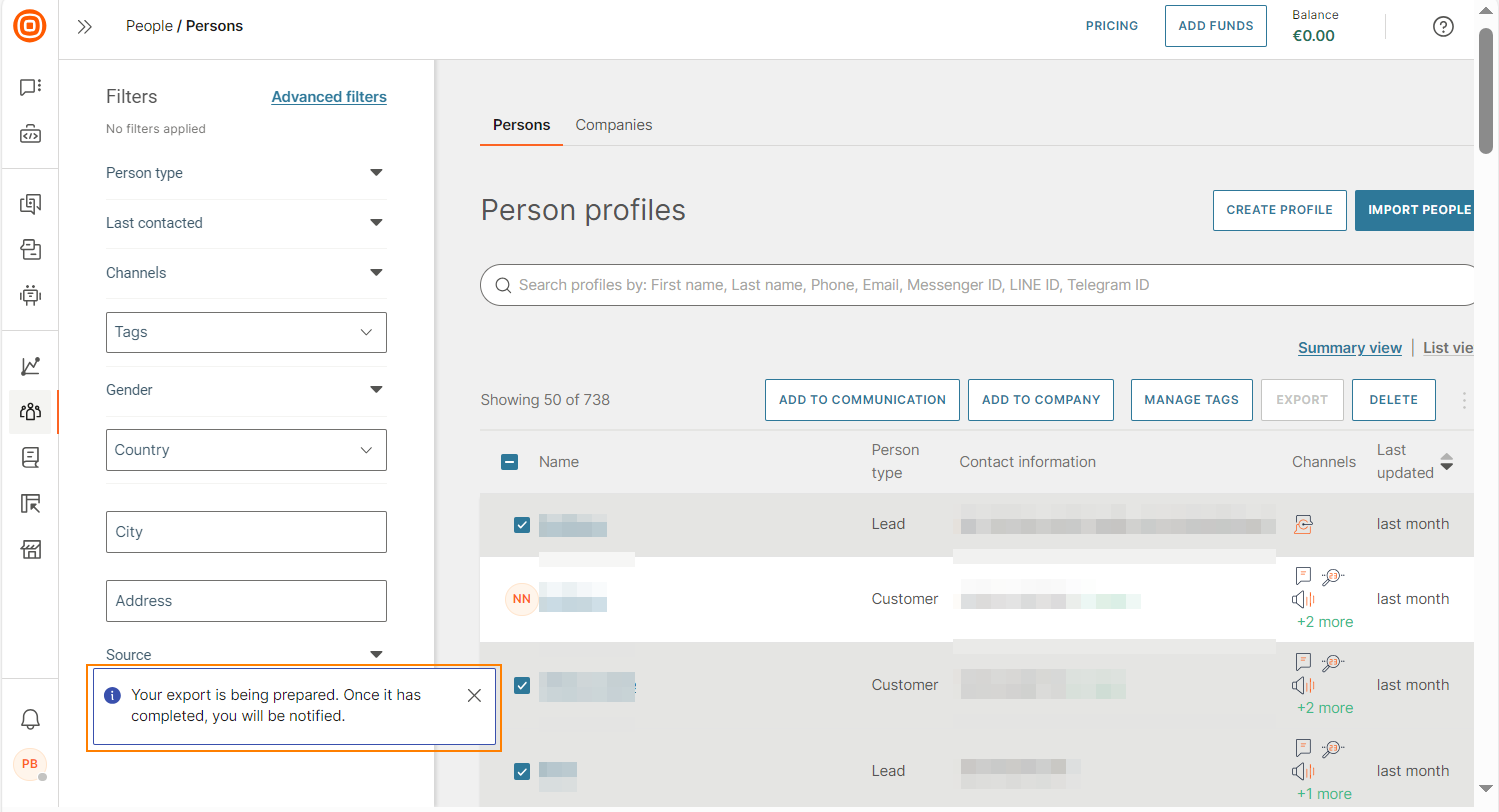
-
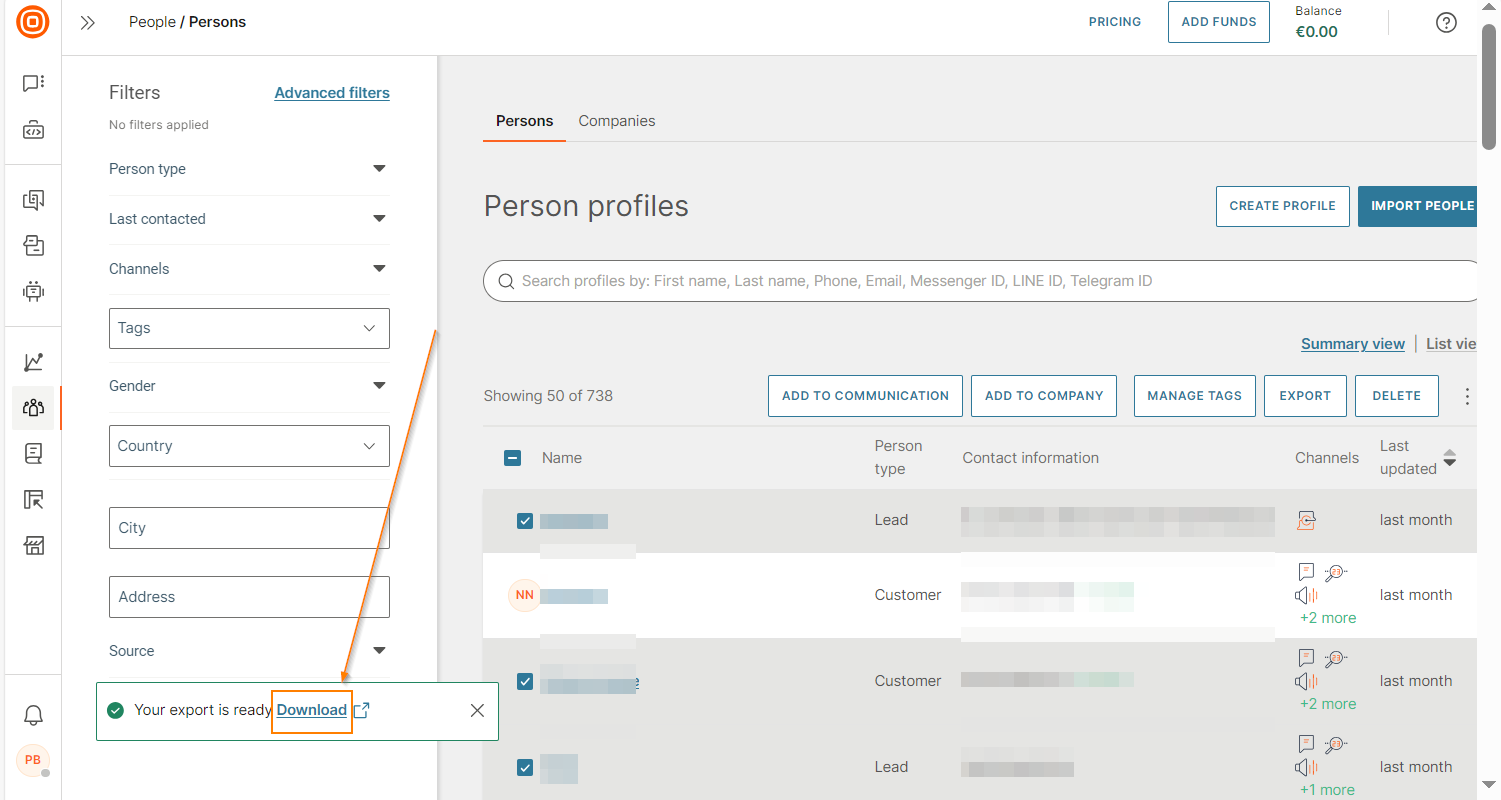
When the export is complete, select Download to save the file.
 Note
NoteThe attribute selection is stored in the browser. So, when you run a new export again, the same attributes are selected. However, if you access the Infobip web interface from a different device or browser, you must select the attributes again.
Export profiles for Facebook custom audience
Use customer data from Customer Profiles to create custom audiences in Facebook. With this option, you can export a list of customer profiles as a CSV file that contains the correct set of attributes in the correct format for Facebook. You can then send these customers relevant ads from your Meta platform.
For more information about custom audiences in Facebook, see the Meta documentation.
To export the files:
-
Go to Persons.
-
Select the profiles that you want to export.
Profiles that do not have any data in the attributes or destination are not exported. So, the number of selected profiles might be different from the number of profiles in the exported file.
-
Select Export.
-
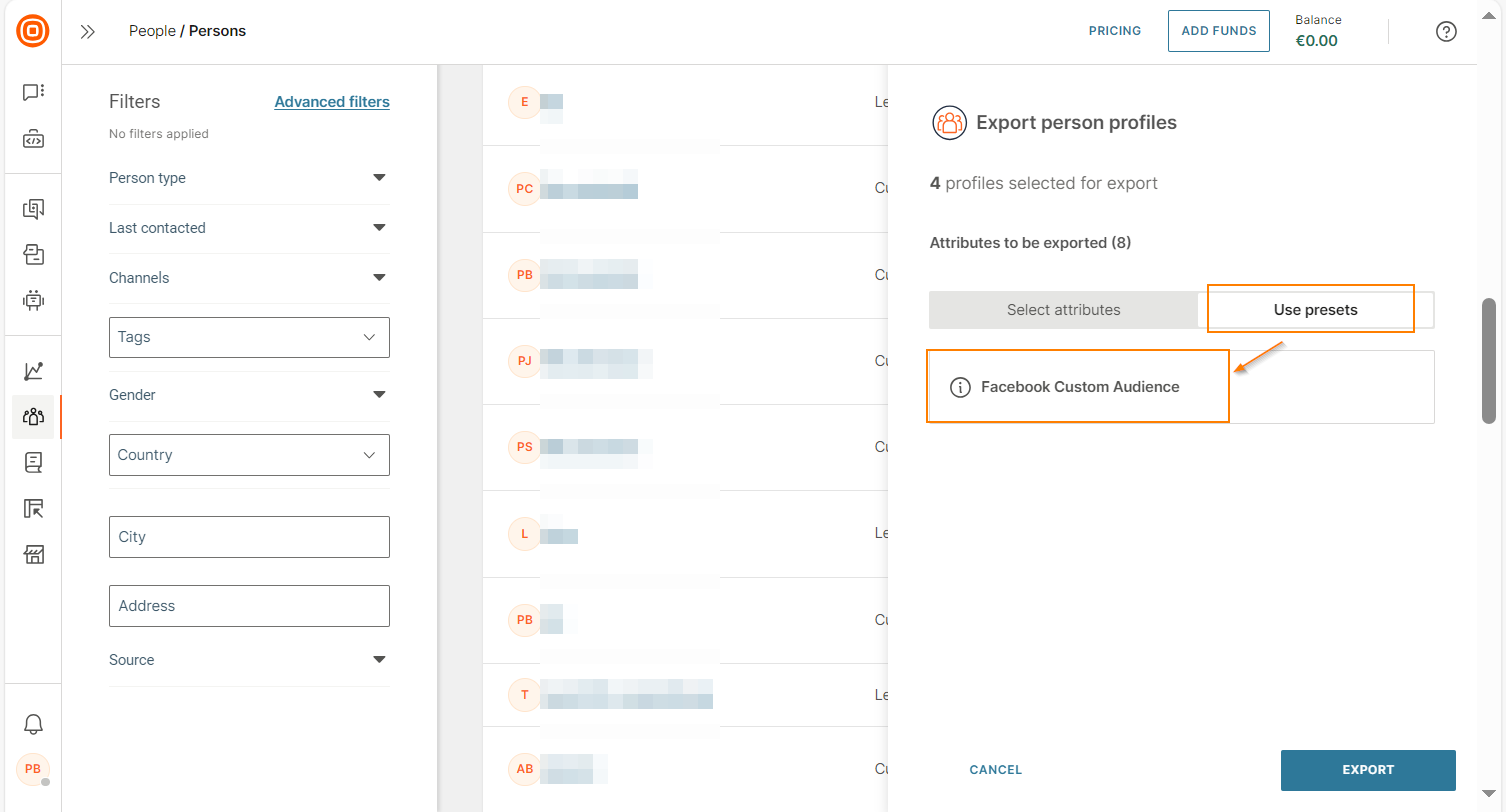
In the Export person profiles window > Use presets tab, select Facebook custom audience.
-
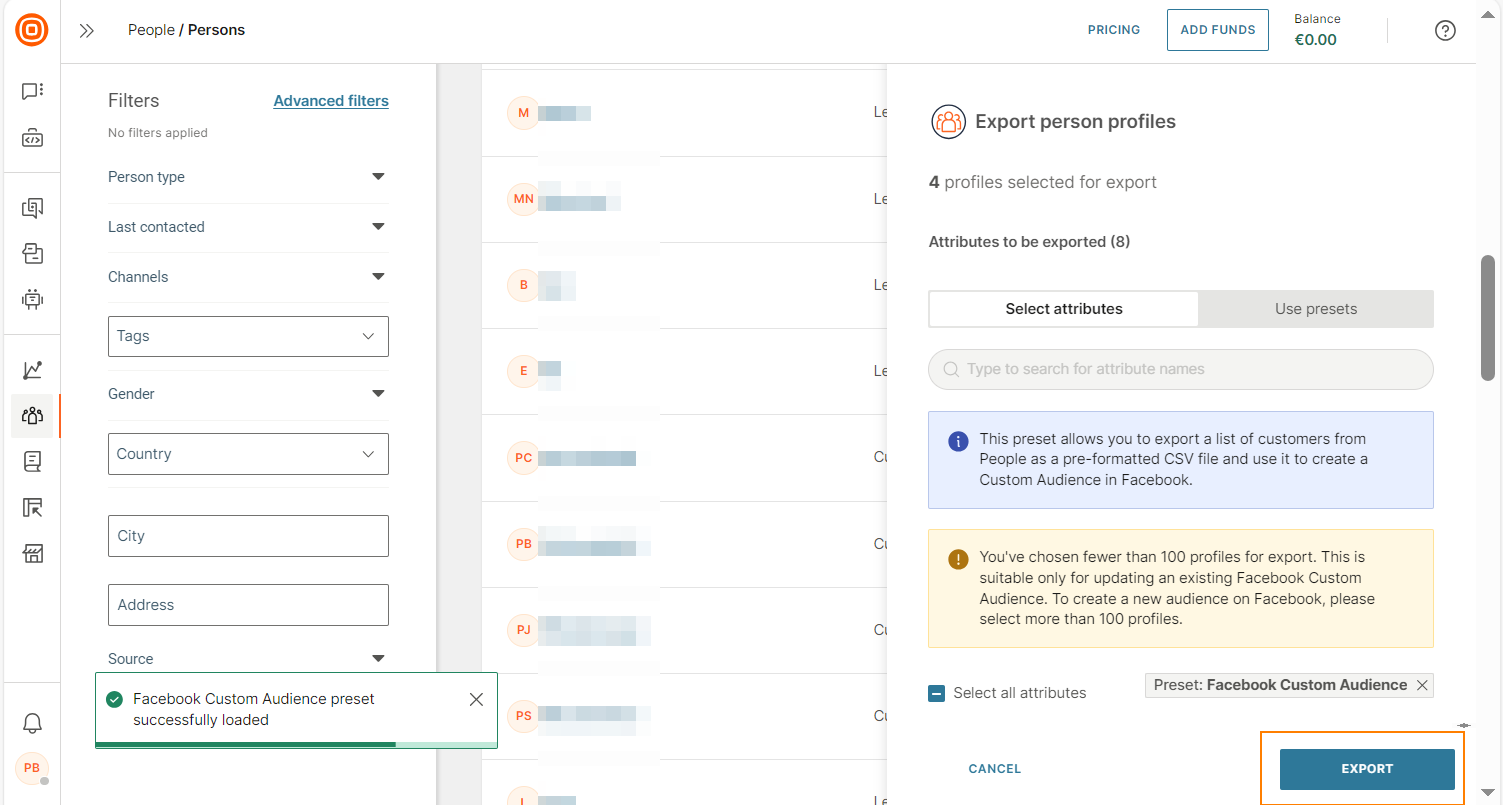
Select Export.
-
The export starts immediately.
-
When the export is complete, select Download to save the file.
NoteIn Facebook, the maximum number of profiles that can be imported at a time is 10,000. So, if you export more than 10,000 profiles from Customer Profiles, the profiles are exported as a zip file that contains multiple CSV files, each containing a maximum of 10,000 profiles.