Customer context
This feature is in Early access. To get access or learn more, contact your dedicated account manager or Support.
Customer context is a Customer Profiles feature that uses AI analysis to turn conversation history into a reusable customer summary and facts. It captures a summary, facts, topics, and sentiment from each analyzed conversation, and shows them to human agents at handoff and on the person profile. The goal is to make each customer interaction continuous instead of starting from scratch.
Information from a conversation can get lost when the conversation moves from one agent to the next. The next human agent asks the customer for the basics again. Handoffs are slow, questions repeat, and agents miss details.
Customer context solves this problem at handoff. Human agents get the story fast, so they can help without asking for the basics again. Customers do not have to repeat themselves.
What Customer context includes [#what-customer-context-includes]
Each analyzed conversation produces the following context:
| Element | Description |
|---|---|
| Summary | A summary of the conversation. |
| Facts | Details extracted from the conversation. Each fact has a key and a value. Facts include the custom facts your business defines. |
| Sentiment | How the customer felt during the conversation. |
When a fact changes across conversations, the person profile shows the most recent value for that fact. Each conversation keeps the value extracted from it.
A conversation can have no facts even after AI analysis processes it. For example, if a customer sends only a greeting and does not reply, there is nothing to extract.
How Customer context works [#how-customer-context-works]
Customer context connects features across AgentOS products:
- AI analysis processes conversations. AI analysis in Insights processes conversations in two situations:
- When a conversation closes: AI analysis processes the closed conversation. The results feed the facts recorded for the person, including custom facts, and the AI customer context card in Inbox.
- When a chatbot, Journey, or AI agent hands off a conversation to a human agent: AI analysis processes the conversation up to the handoff.
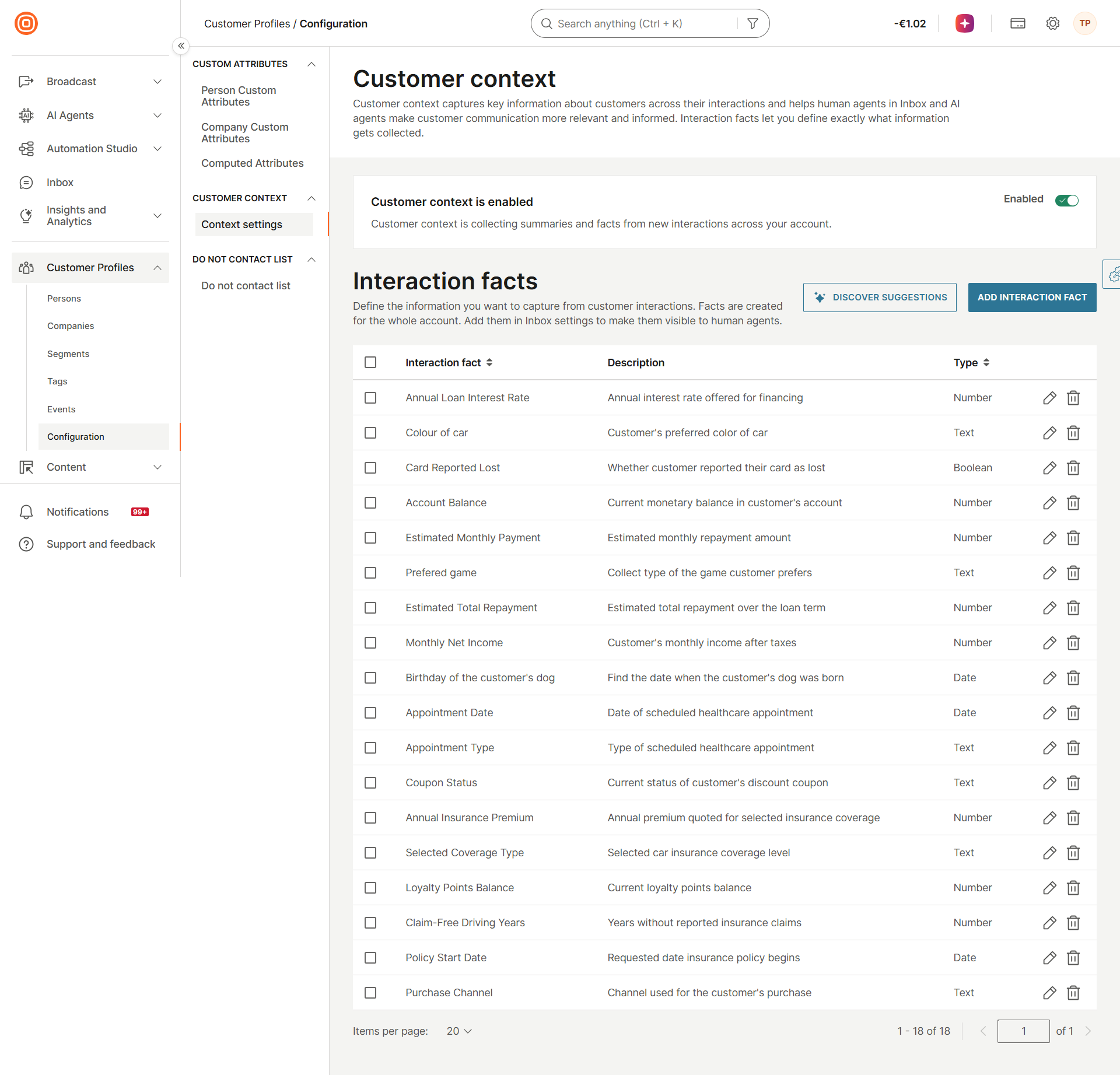
- Custom facts define what to extract. Custom facts in Customer Profiles set the business-specific details that AI analysis extracts. Examples include an order number, a recipient name, or a policy number. Define custom facts once for your whole account. They apply to all conversations analyzed after you define them.
- The AI customer context card shows the briefing. The AI customer context card in Inbox shows a briefing to the human agent at handoff. The briefing includes the current interaction, a customer summary, and the customer's past interactions. The agent can start helping right away.
What you can do with Customer context [#what-you-can-do]
The following table shows which Customer context features each scenario uses.
| Interaction memories | Custom facts | Customer summary | Memory search | AI customer context card | |
|---|---|---|---|---|---|
| Agent handoff | Core | Core | Enhances | Core | |
| Continuity and AI recall | Core | Core | Core | Core | Enhances |
| Business-specific facts | Core | Core | Core | Core |
Where Customer context appears [#where-customer-context-appears]
Customer context appears in the following places:
-
AI customer context card in Inbox: When a chatbot, Journey, or AI agent hands off a conversation, the human agent gets a briefing in My Work. The briefing appears on the AI customer context card. The card is read-only and shows the following:
- An analysis of the current interaction. The analysis includes the interaction summary, outcome reason, interaction outcome, sentiment, up to 4 topics, and up to 5 facts.
- A customer summary of the analyzed past interactions, not including the current interaction.
- The customer's analyzed past interactions from all queues.
Without a handoff, the card shows past interactions only.
-
Context section on the person profile: The Context section shows a summary across the person's conversations and the most recent value of each fact. It also includes Memory history, a table with one row per conversation.
The Customer context summary is different from the AI conversation summary in Inbox. For details, see Questions and troubleshooting.
Set up Customer context [#set-up-customer-context]
Before you set up Customer context, check the following requirements:
- You need the
profile/context/managepermission. For details, see Permissions. - To turn on the AI customer context card in Inbox, you need the
inbox/settings/ai/managepermission. For details, see Inbox permissions.
To use Customer context, complete the following setup. Each item links to the detailed steps:
- Turn on AI analysis in Insights settings.
- Turn on Customer context on the Custom facts tab in Customer Profiles.
- Define custom facts in Customer Profiles.
- Turn on AI customer context in Inbox settings. Optionally, limit the queues where agents see the card.
The Customer context toggle in Customer Profiles and the Show AI customer context to agents toggle in Inbox work independently:
- The Customer context toggle controls whether AI analysis collects context.
- The Inbox toggle controls whether agents in the selected queues see the AI customer context card.
If you turn off Customer context but keep the Inbox toggle on, agents still see the context collected until you turned Customer context off. If you turn on Customer context but keep the Inbox toggle off, AI analysis collects context in the background, but agents do not see it. For details, see AI customer context settings.
Customer context builds on AI analysis. The AI analysis features are not compliant and must not be used with Protected Health Information (PHI) or in HIPAA-eligible environments.
If your organization is subject to HIPAA regulations or handles PHI, do not use AI analysis for any PHI-related data, communications, or processing.
To ensure full compliance with HIPAA requirements, you can turn off these features in Insights settings.
By using AI analysis with PHI, you do so entirely at your own risk. Infobip assumes no responsibility or liability for any breach, unauthorized disclosure, or non-compliance with HIPAA regulations resulting from such use.
For questions about HIPAA compliance, turning off these features, or compliant alternatives, contact your compliance officer or Infobip Support.
Permissions [#permissions]
To give users access to Customer context, assign them a role that includes the permissions they need. The following roles include the permissions for Customer context:
| Role | Permissions | What it enables |
|---|---|---|
| Customer profile manager | profile/context/manage, profile/context/view | Set up Customer context and custom facts in Customer Profiles, and view Customer context on the person profile. |
| Supervisor for Inbox | inbox/settings/ai/manage | Show AI customer context to agents and select the queues on the AI customer context tab in Inbox AI settings. |
For granular access, add the permissions to a custom role. For all Inbox permissions, see Inbox permissions. To learn how to assign roles and permissions, see Manage roles.
Use Customer context over API [#customer-context-api]
Use the Context API to work with Customer context from your own systems:
- Manage custom facts: Create, view, update, and delete fact definitions. See Create fact definition.
- Get context for a person: Get the interaction memories of a person, the memory of a single interaction, or the most recent summary of a person. See Get person interaction memories and Get latest person summary.
- Search memories: Search the interaction memories of a person by meaning and by keywords. See Search person interaction memories.
- Receive webhook events: Get notified when Customer context creates or updates the facts, summary, sentiment, or topics of an interaction, or the summary of a person. See Context Webhook.
To receive webhook events, create a subscription in the AgentOS category. For the list of Context events, see Available webhook events.
Your API key needs one of the following scopes:
| Operation | Scopes |
|---|---|
| View fact definitions, memories, and summaries, and search memories | context:view, context:manage, people:read, or people:manage |
| Create, update, and delete fact definitions | context:manage or people:manage |
Use Customer context over MCP [#customer-context-mcp]
Use the Context MCP server to give AI agents access to Customer context. The server is in Early access and uses the https://mcp.infobip.com/context endpoint.
The server tools cover the following:
- The person summary
- Interaction memories, with summary, sentiment, facts, and topics
- Memory search by meaning and keywords, with an optional time window
- Lookup of a single interaction
- Listing and creating fact definitions
Turn on Customer context for your account before you connect the server. See Turn Customer context on or off.
Keep the following in mind when you use the Context MCP server:
- Look up by person ID: The tools find a person by person ID. If your AI agent knows only the phone number or email address of the customer, also connect the People MCP server, so the agent can find the person first. See Customer data and platform management.
- No updates or deletes of fact definitions: The server can list and create fact definitions, but it cannot update or delete them. To update or delete fact definitions, use the Context API or the Custom facts tab in Customer Profiles.
To connect the server:
- Infobip AI agents: Add the server as an MCP server tool. See Configure an AI agent.
- Other MCP clients: Connect with an API key or OAuth 2.1. See Using Infobip MCP servers.
Your API key needs the same scopes as for the Context API.
Facts by industry [#facts-by-industry]
Use these examples to decide which custom facts to define.
| Industry | Example facts |
|---|---|
| Financial services | Account status, recent transactions, payment or installment schedule |
| Insurance | Policy number, claim details, payment schedule |
| Retail and e-commerce | Order number, delivery status, recent purchases |
| Transport and mobility | Driver or vehicle status, recent trips |
| FMCG | Order and delivery tracking |
Facts that are useful in all industries include customer identity, open issues, and customer tier or segment. The Customer context summary already covers prior conversations.
Questions and troubleshooting [#questions-and-troubleshooting]
Why does a person have no facts? [#why-does-a-person-have-no-facts]
A person can have no facts even when they have conversations. For example, if a customer sends only hi and does not reply, there is nothing to extract. AI analysis also does not extract facts while AI analysis or Customer context is turned off. On the person profile, facts also do not appear until AI analysis processes a closed conversation. Check that AI analysis is turned on in Insights settings and that you defined custom facts.
Why is the summary empty? [#why-is-the-summary-empty]
The summary on the person profile comes from closed conversations. The analysis of a closed conversation can take a few hours. A summary for a person with no closed, analyzed conversations can be empty. Also check that the conversation is linked to a person profile.
Why do changes to custom facts not show for earlier conversations? [#why-do-changes-to-custom-facts-not-show-for-earlier-conversations]
Changes to custom facts apply only to conversations analyzed after you save the change. AI analysis does not analyze earlier conversations again, so earlier conversations keep the facts extracted at the time.
How is the Customer context summary different from the AI conversation summary in Inbox? [#how-is-the-customer-context-summary-different-from-ai-conversation-summary]
AI analysis generates the Customer context summary and the handoff briefing automatically. Agents generate an AI conversation summary in Inbox on demand with Generate summary.
Related pages [#related-pages]
For more information about Customer context and the features it uses, see the following pages:
- Custom facts
- Context section on the person profile
- AI customer context in Inbox
- AI customer context settings
- Insights settings
- AI usage
- Available webhook events
- Using Infobip MCP servers
- What is AgentOS
Was this page helpful?