Create a segment
You can create user-defined segments manually by defining specific rules or use AI to generate segment criteria automatically. After creating segments, you can manage or add them to communication.
Create a segment manually
-
Go to Customer Profiles → Segments.
-
Select Create segment.
-
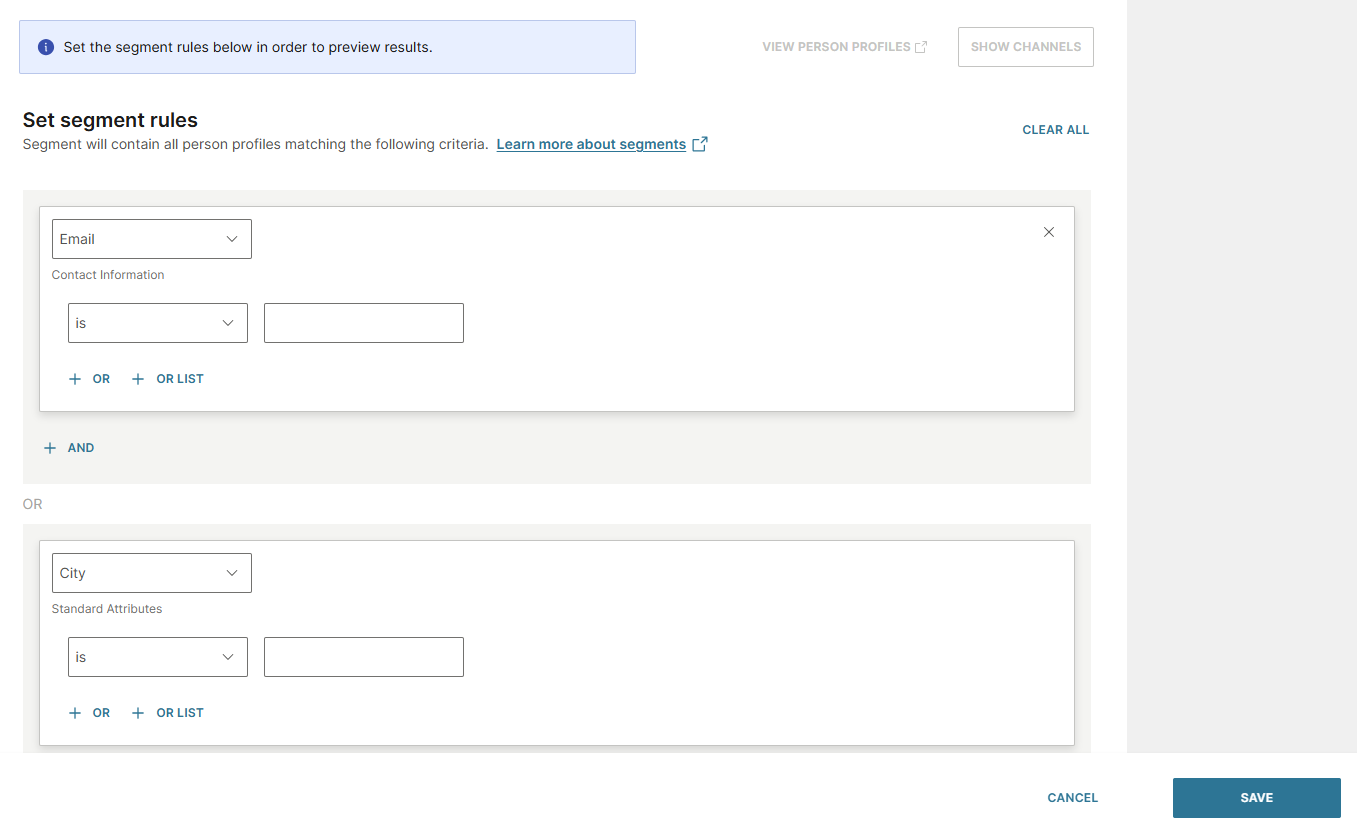
In the Set segment rules section, define the criteria for profiles to be added to the segment. You can specify attributes, events, or both.
- Attribute: Select an attribute, operator, and value. To add alternative values for the same attribute, select + OR or + OR LIST. To add another attribute condition to the same group, select + AND. You can add a maximum of 25 clauses for attributes.
- Event: Select an event, operator, values, and properties. To add alternative values for the same event property, select + OR or + OR LIST. To add another event condition, select + AND. You can add a maximum of 5 clauses for events.
- OR group: To define an alternative set of conditions, select the OR separator below a clause group. A profile matches the segment if it satisfies the conditions in any one OR group.
You can search for attributes and events, or use filters. At the top of the page, you can see an overview of the profiles that match the criteria.
- Add a name for the segment.
- In the Segment summary section, add a description for the segment.
- Alternatively, you can generate the summary by using AI. Select Generate AI summary.
- Select Save.
AND and OR logic in segment rules
Segment rules support combining conditions with AND and OR logic at multiple levels.
- Value-level OR (within a clause): Use + OR to add alternative values to the same attribute or event property condition. Use + OR LIST to paste or import a list of values. Example: City is Zagreb OR City is Split.
- Clause-level AND (within a group): Select + AND to add conditions that must all be true together. Example: City is Zagreb AND Country is Croatia.
- Group-level OR (between groups): Select the OR separator below a group to create a new group. A profile matches if it satisfies all conditions in at least one group. Example: (Email is user@example.com) OR (City is Zagreb).
Segments that use OR groups are not supported in the following scenarios:
- Continuous trigger: You cannot use these segments as an audience in journeys with a Continuous entry point. Flows that listen to segment updates do not work with extended AND/OR logic.
- Prompting: These segments are not available for prompting use cases.
If you use list attributes, you can control how the segment rules apply to list attributes. For more information, see Filter list items.
Create a segment using AI
- Go to Customer Profiles → Segments.
- Select Create segment.
- In the Set segment rules section, select Create segment with AI.
- In the Create segment with AI screen, enter the criteria for the segment.
- Select Create segment.
The segment rules are generated automatically. The Segment summary is also automatically updated based on the segment rules.
You can refine the AI-generated rules by manually editing them after creation.